
Messenger
Speak your own language
In Padelada, everyone writes in their own language and reads in their own. Laura’s message in Spanish reaches you already in English, and she reads your reply in Spanish. Padel words like bandeja and víbora stay as they are, because everyone understands them anyway. The original is shown right above the translation.
What it can do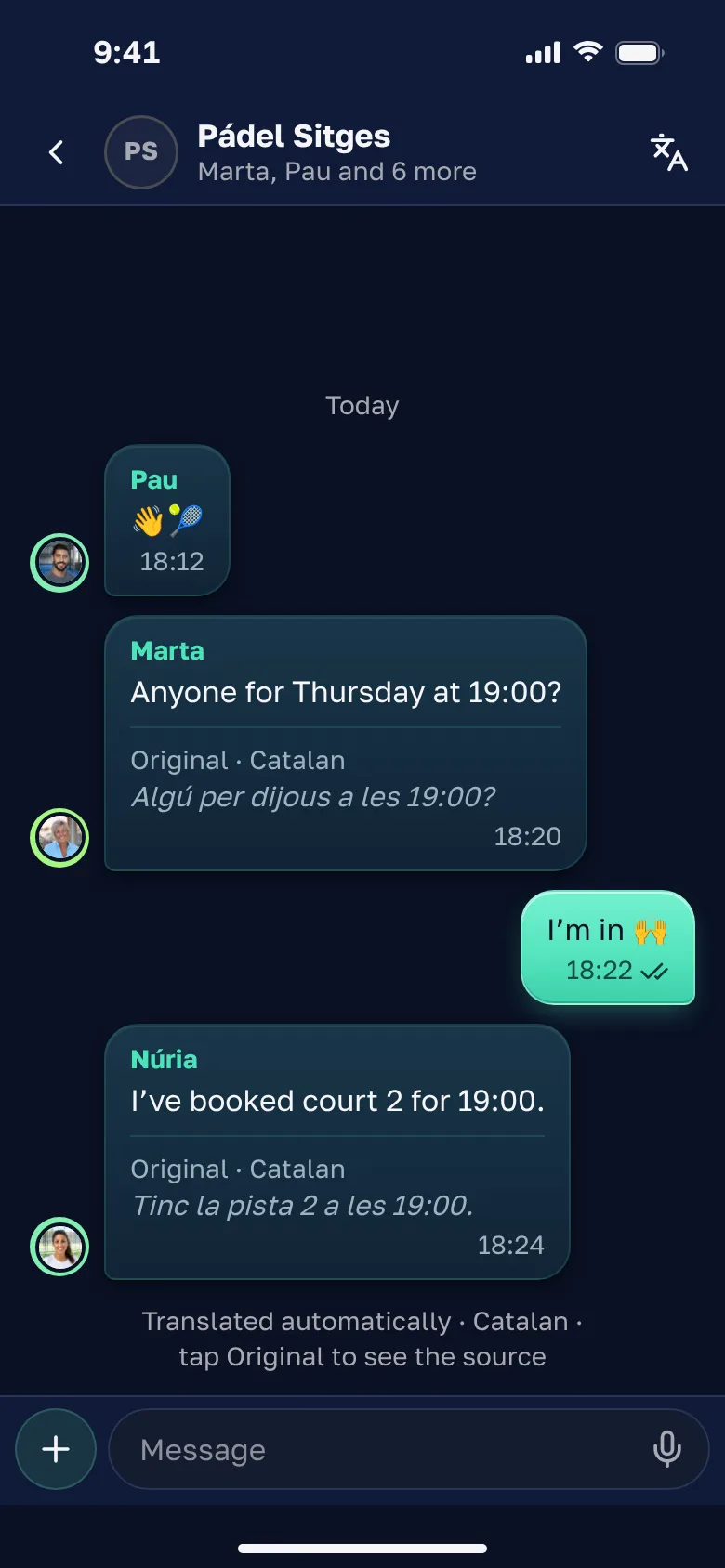

Padelada Messenger
Chats in Padelada work like the messenger you already know: direct messages, groups, and chats for matches, tournaments, clubs and your comarca. Everyone writes in their own language and reads in their own language: translation happens by itself.
Free for everyone: messages, direct and group chats, voice messages with a transcript, text translation, photos and video.
How to find a chat or a message
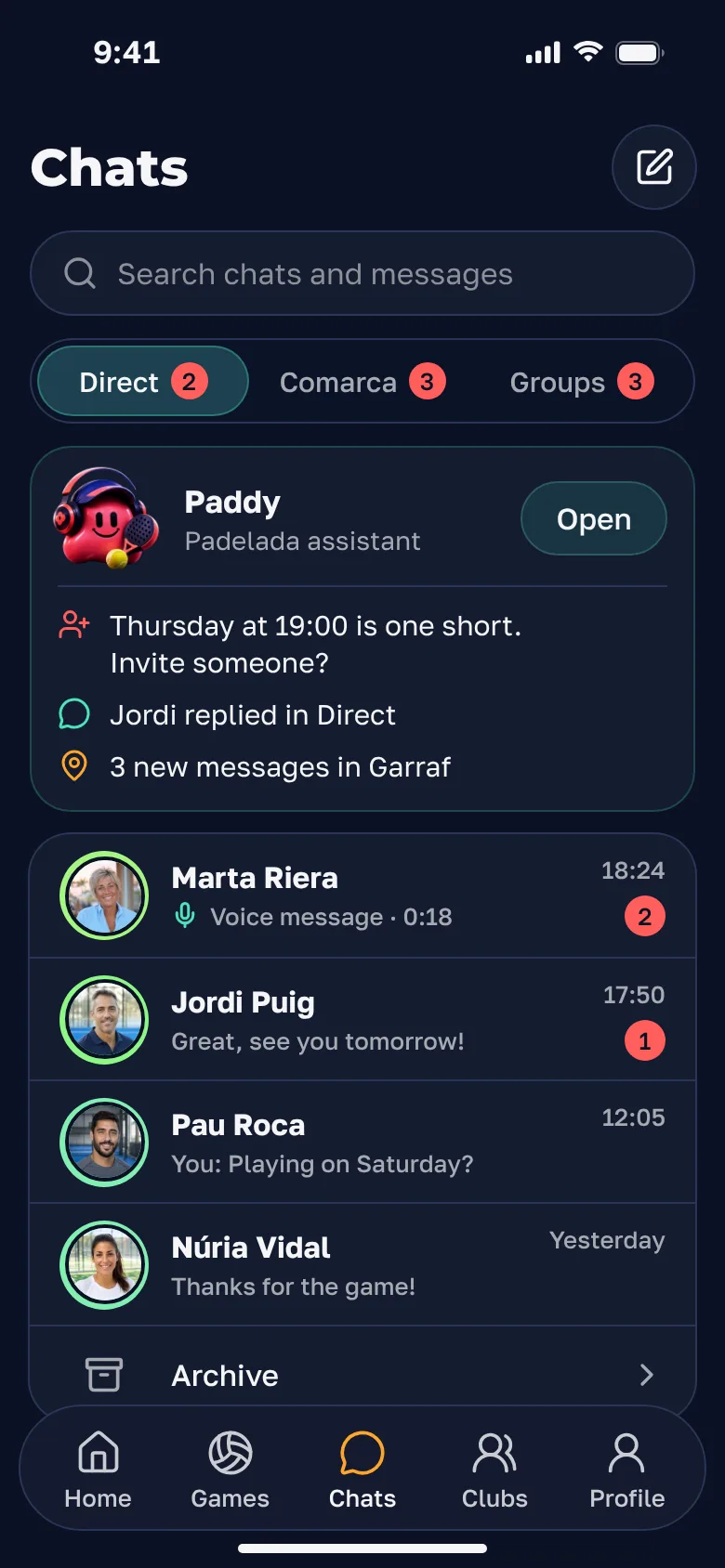
1. Tap “Search chats and messages” at the top of the “Chats” tab.
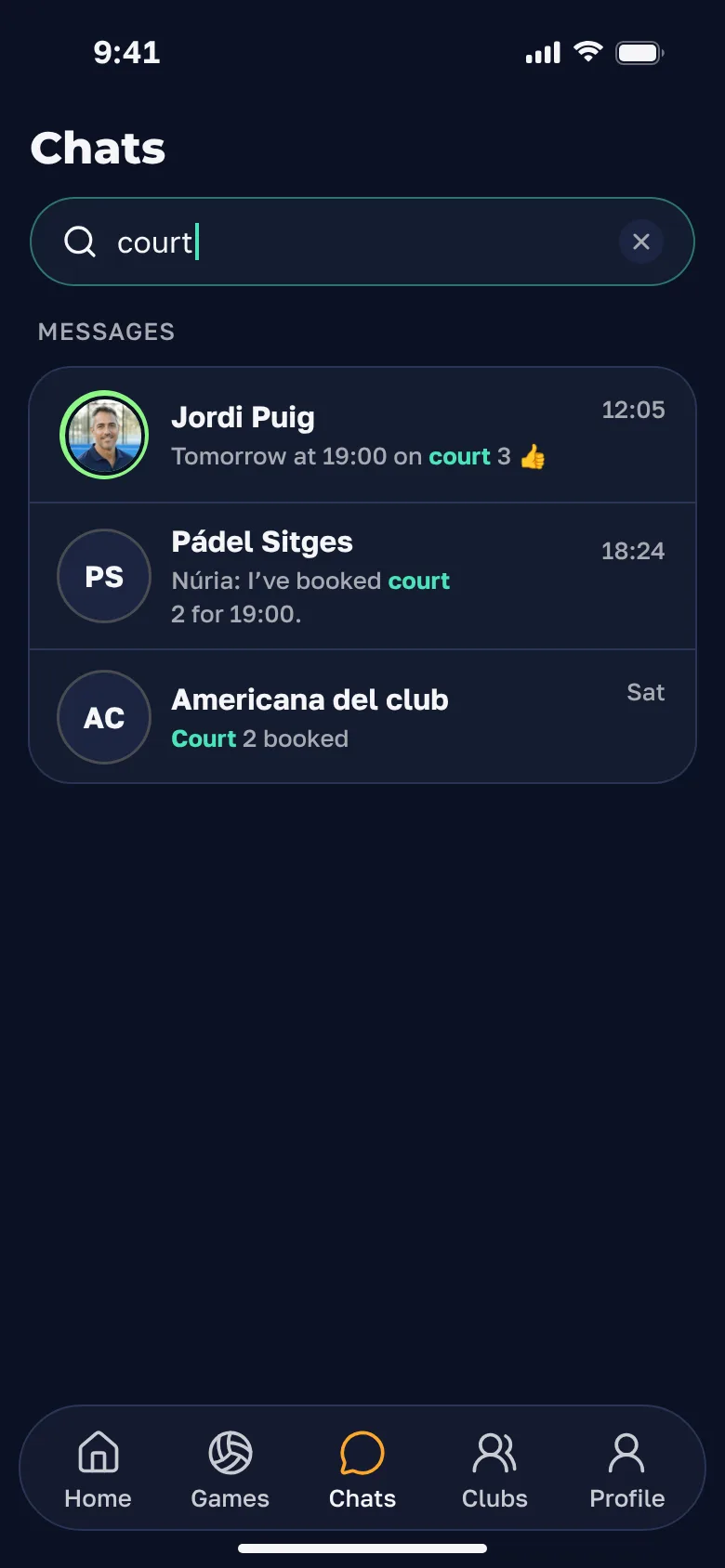
2. Type a word: both chats and messages turn up. Tap a result to open the chat.
To search inside a single chat, open it, tap “…” at the top right and choose “Search”.
Folders: Direct, Comarca, Groups
1. Under the search there are three folders. “Direct” opens first: one-to-one chats, whether you started them or someone wrote to you.
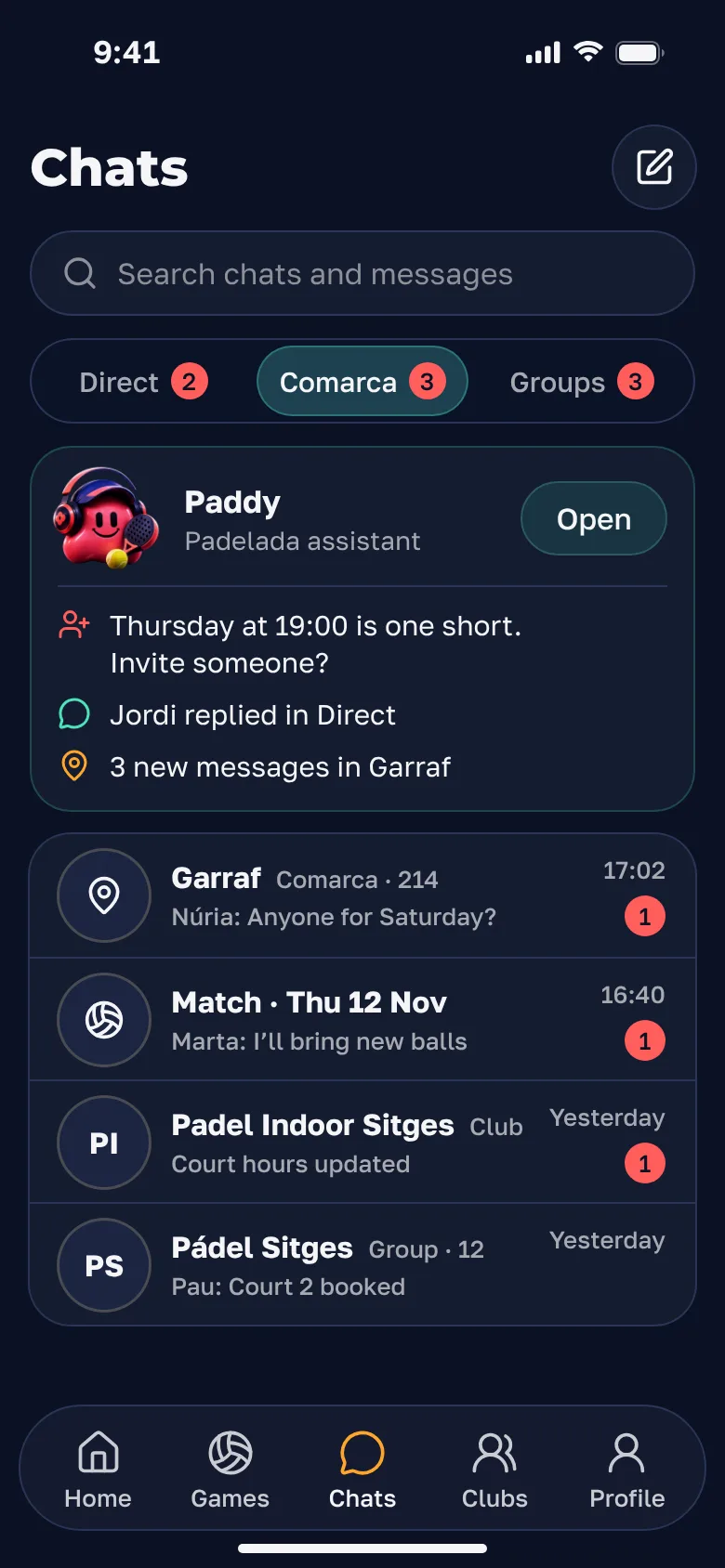
2. “Comarca” is everything in your comarca: the comarca chat, its groups, match chats and the clubs nearby.
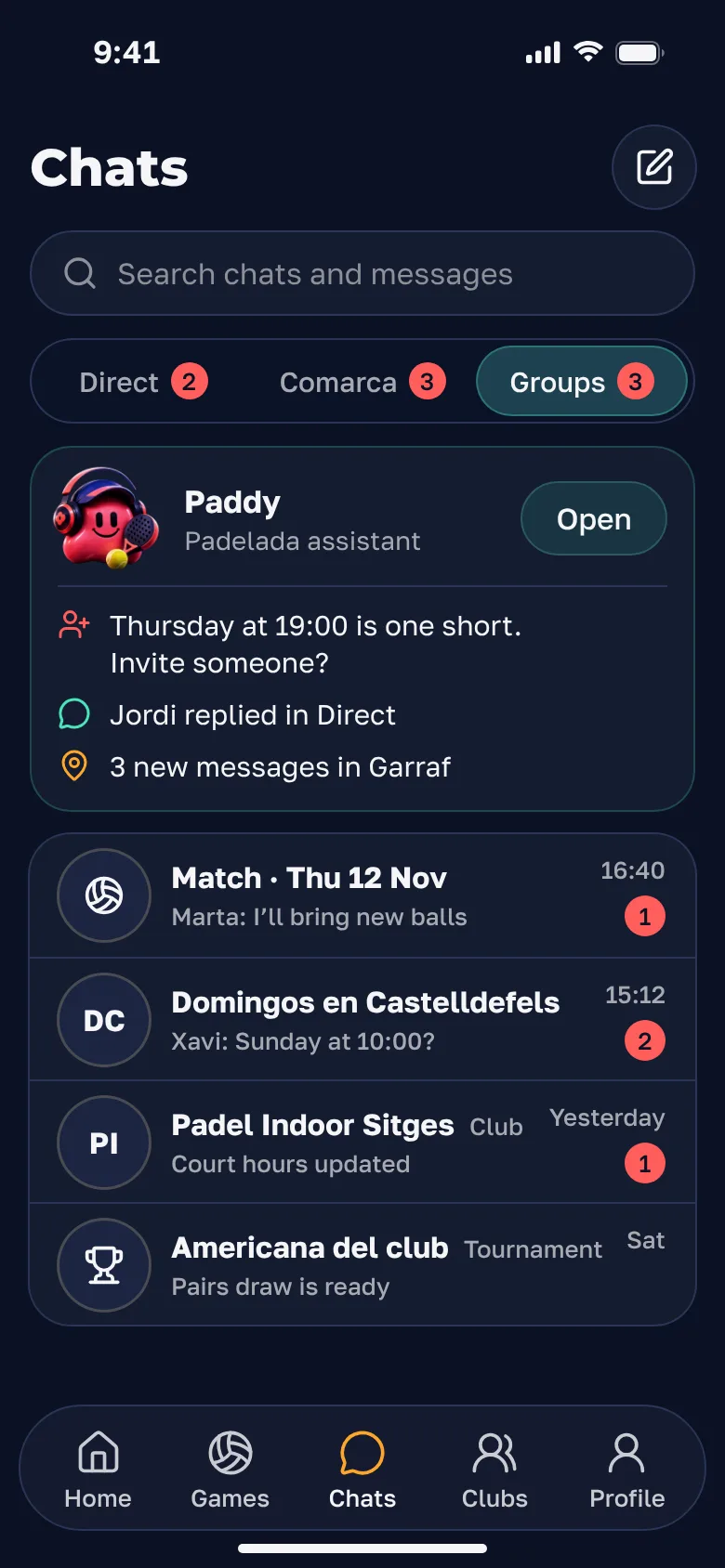
3. “Groups” is every group you belong to, in any comarca: matches, clubs, tournaments and groups of friends.
A group in your comarca shows up in both “Comarca” and “Groups”. The number on a folder is how many of its chats have unread messages. Search covers all folders, and “Archive” is the last row of the list.
How to hide the numbers on folders
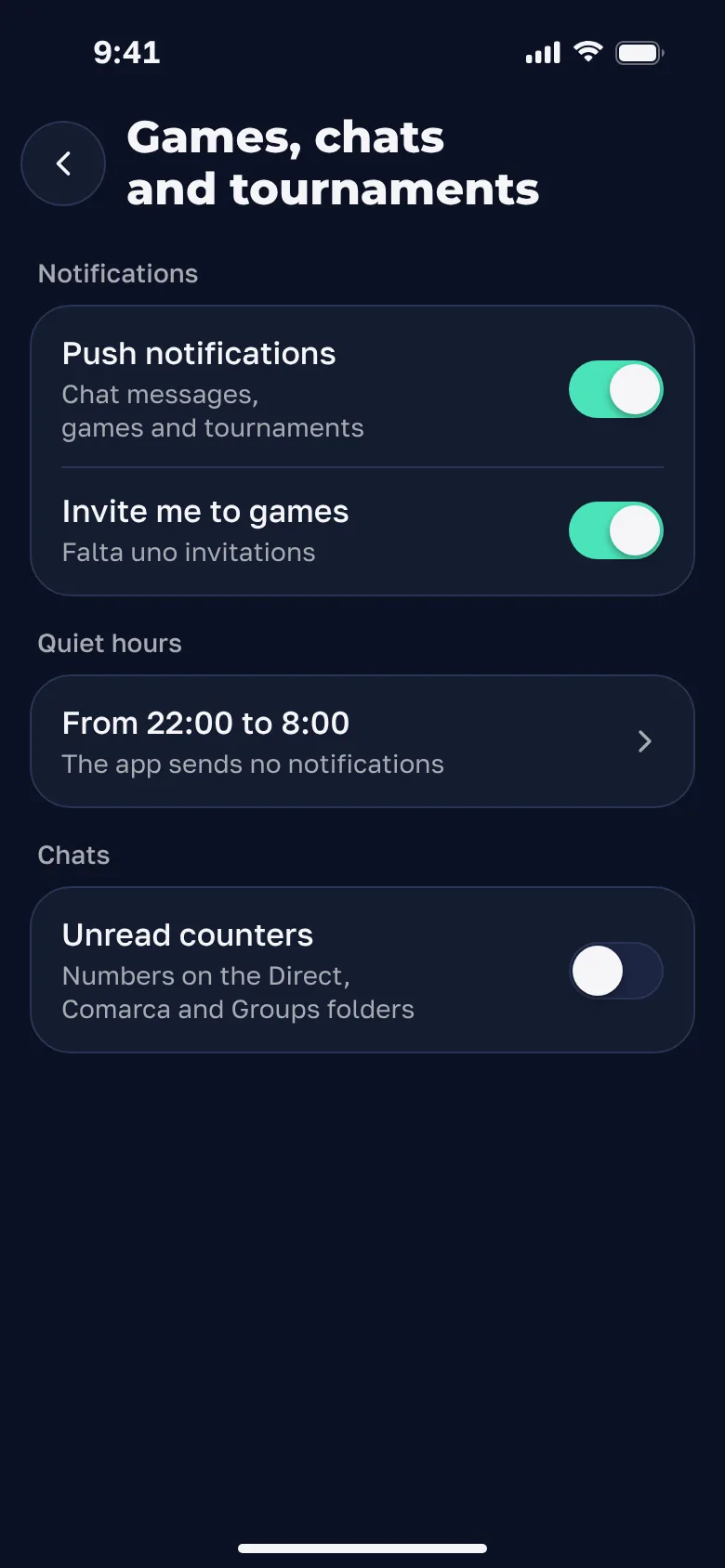
1. In Profile: “Settings” → “Notifications” → “Games, chats and tournaments”. Under “Chats”, turn off “Unread counters”. The numbers disappear from the folders; you can turn them back on in the same place.
How to message a player directly
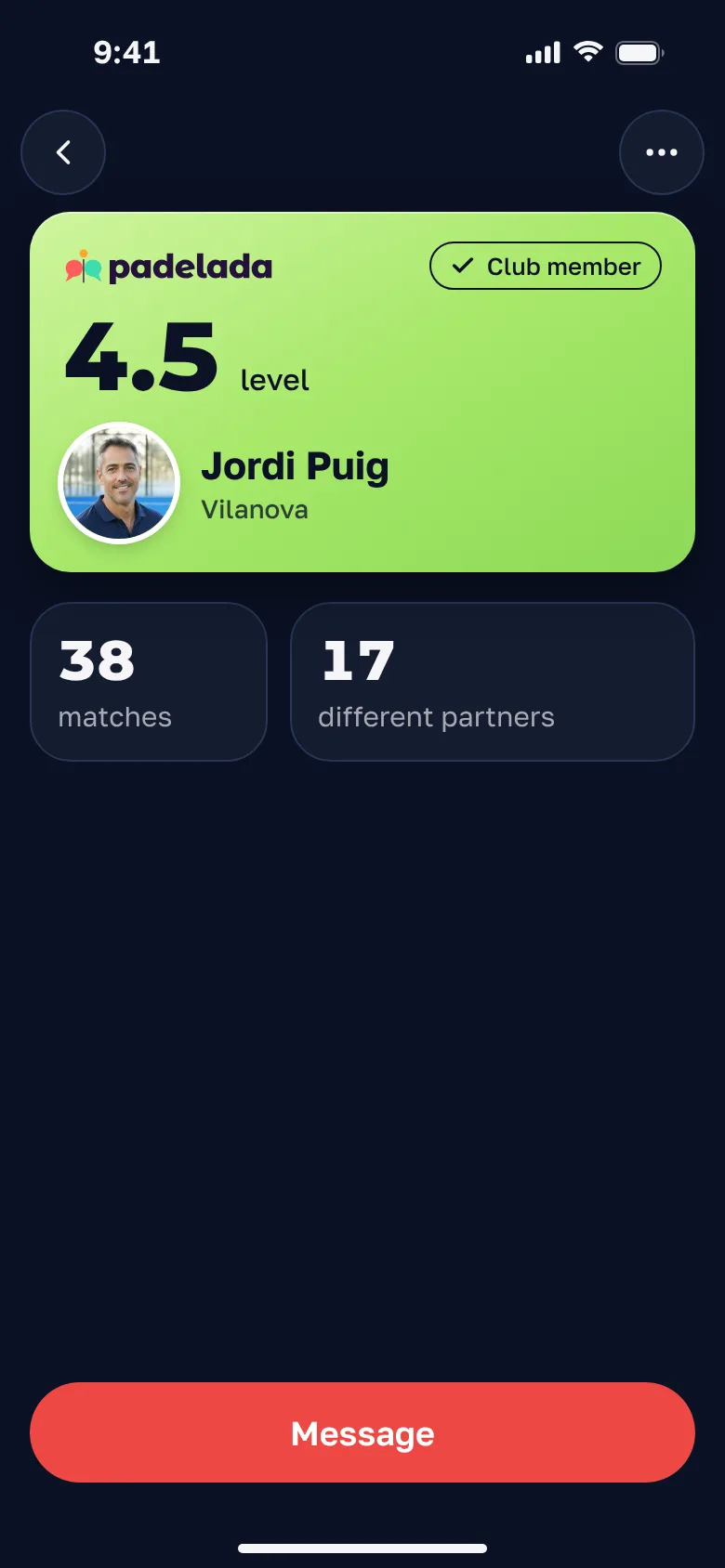
1. Open the player’s profile and tap “Message” at the bottom of the screen.
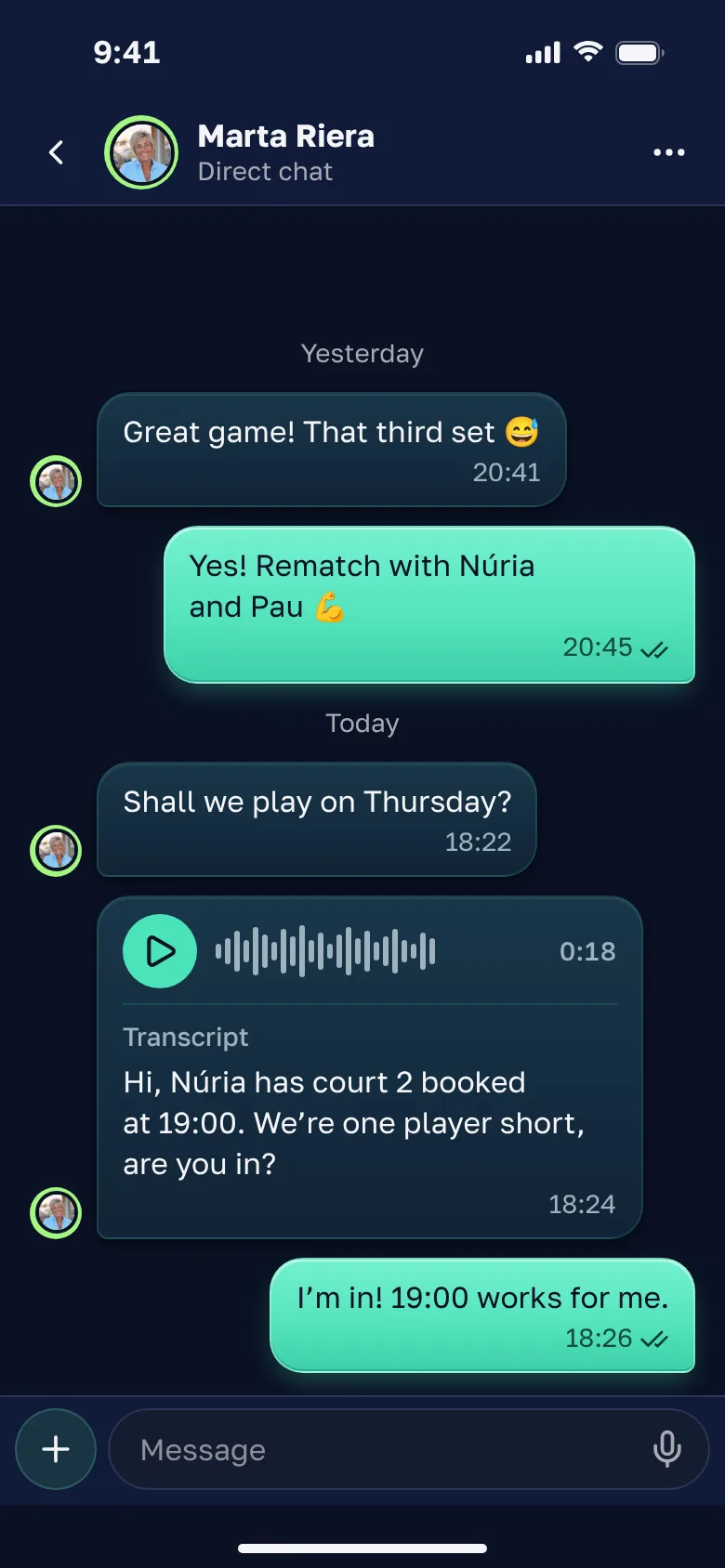
2. Write your message. The chat appears in the “Direct” folder.
How to write in a match, group or club chat
1. Once a match line-up is full, the match gets its own chat, in the “Groups” folder.
2. Write to all participants at once. Everyone reads your message in their own language.
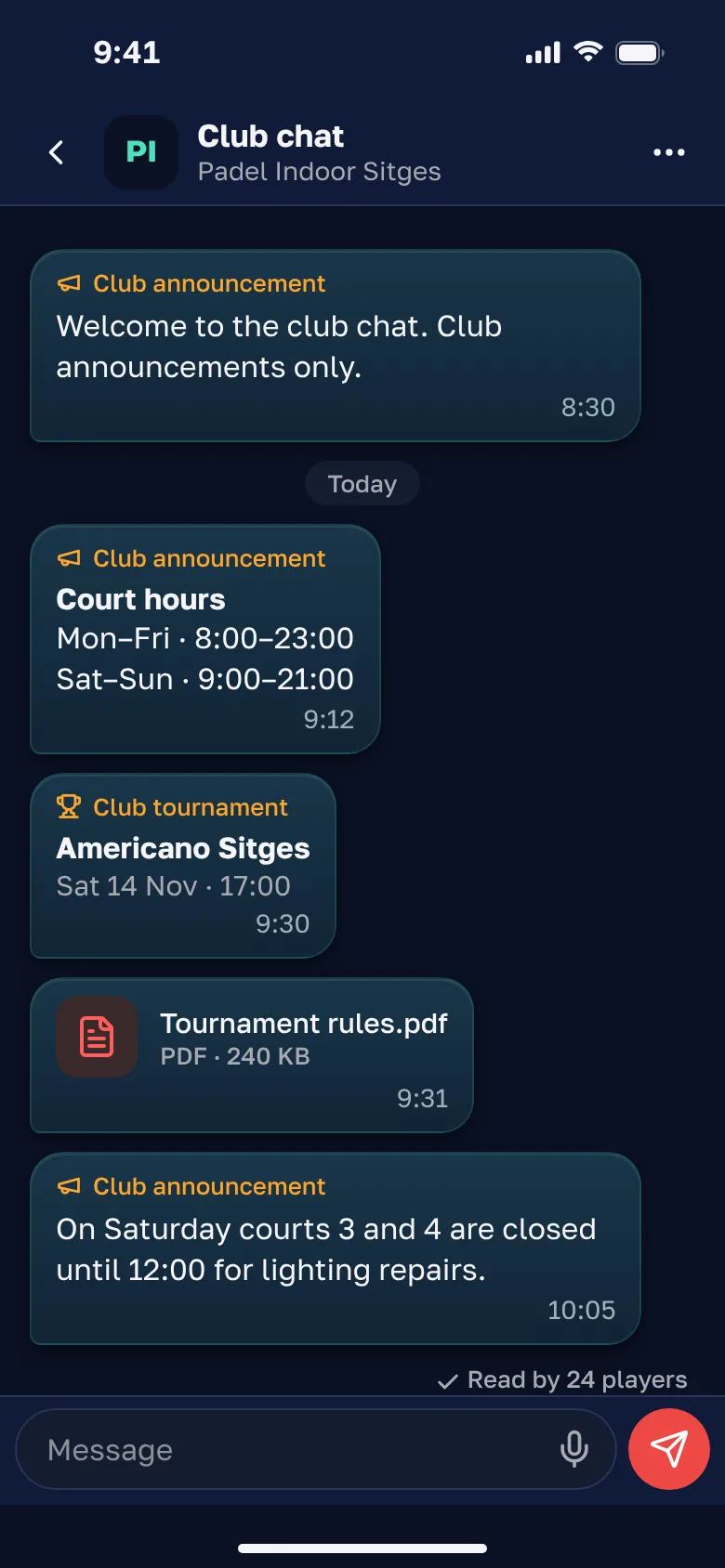
3. The club chat carries club announcements: court hours, tournaments, documents.
Tournament chats are in the “Groups” folder too.
How to write in the comarca chat
1. Your comarca chat is in the “Comarca” folder. You can write in it right away.
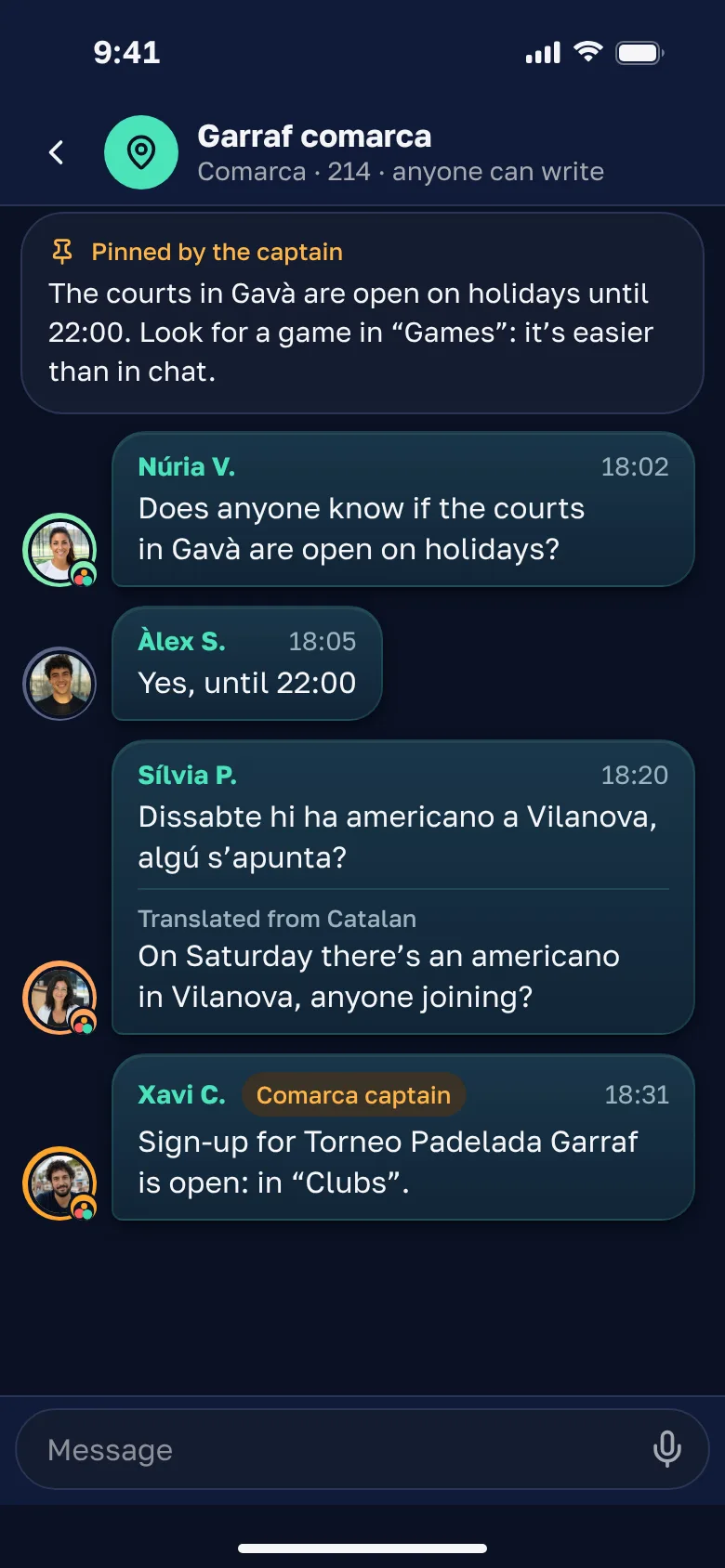
2. At the top is the message pinned by the comarca captain. Below, people arrange games.
How to send a voice message
1. Press and hold the microphone. A short tap switches on dictation to text.
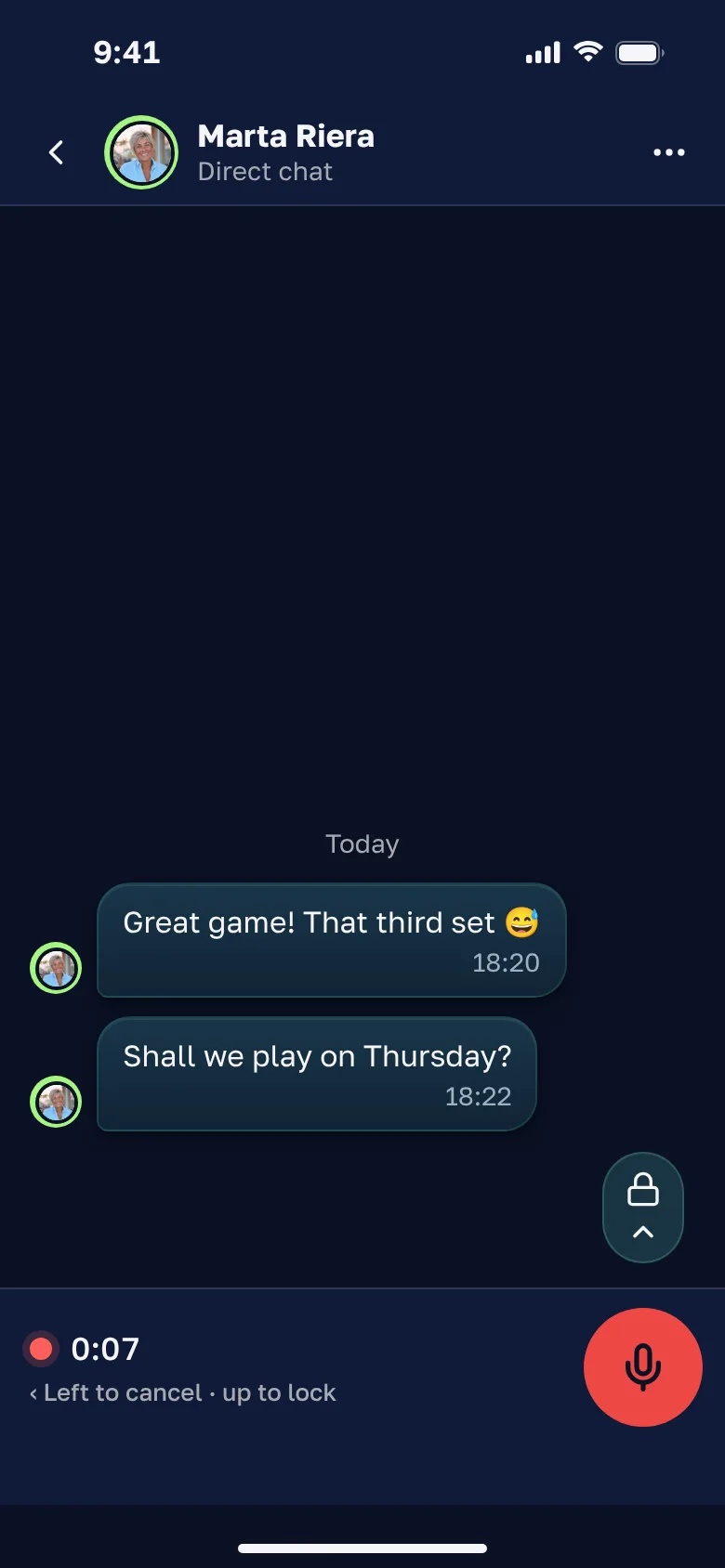
2. Speak, then let go and the message is sent. Slide left to cancel; slide up and the recording locks, so you can lift your finger.
3. A transcript appears under the voice message. The other person reads it in their own language.
How to read a translation
1. A message in another language arrives already translated. Under the translation is “Original”: the source text and its language.
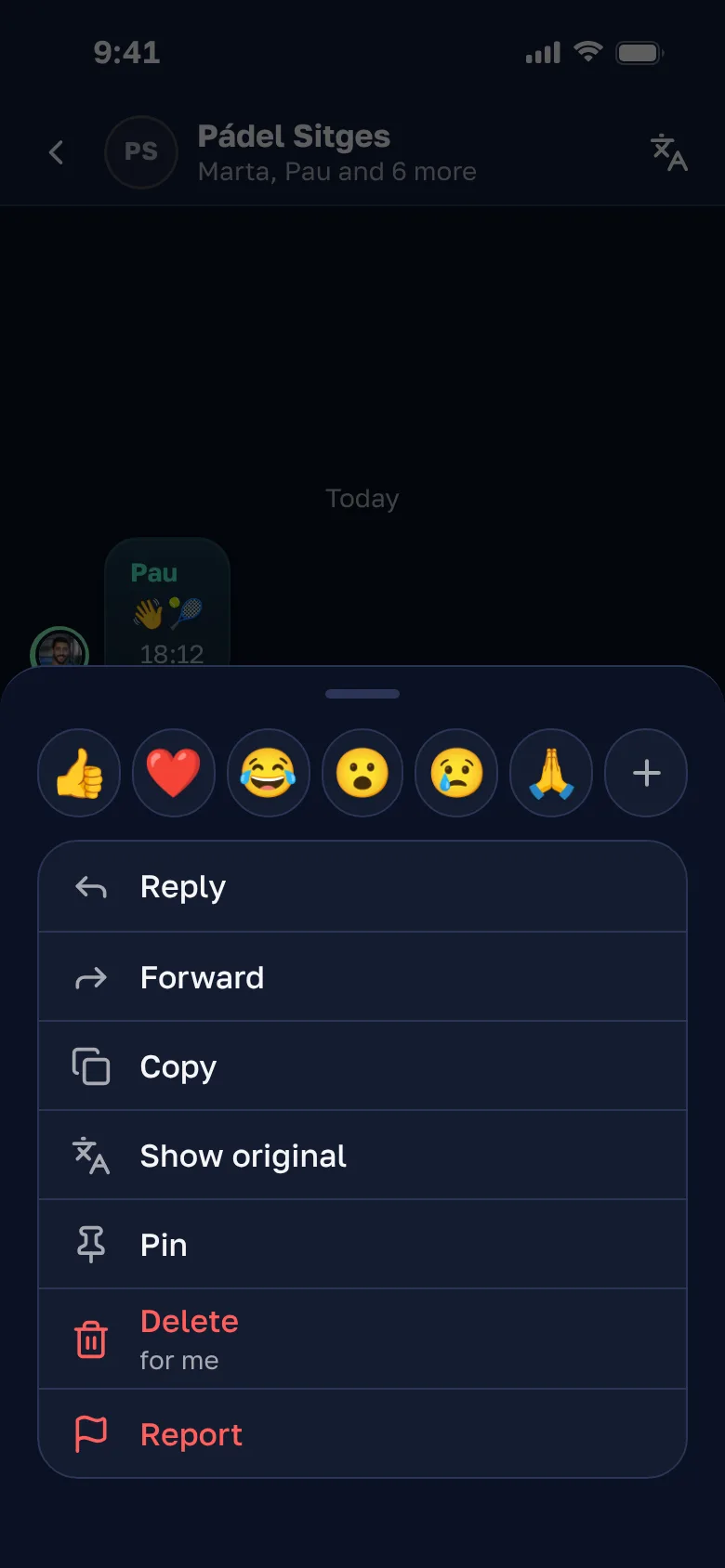
2. To hide or show the original again, press and hold the message and tap “Show original”.
How to send photos and video
1. In a chat, tap “+” to the left of the message field.
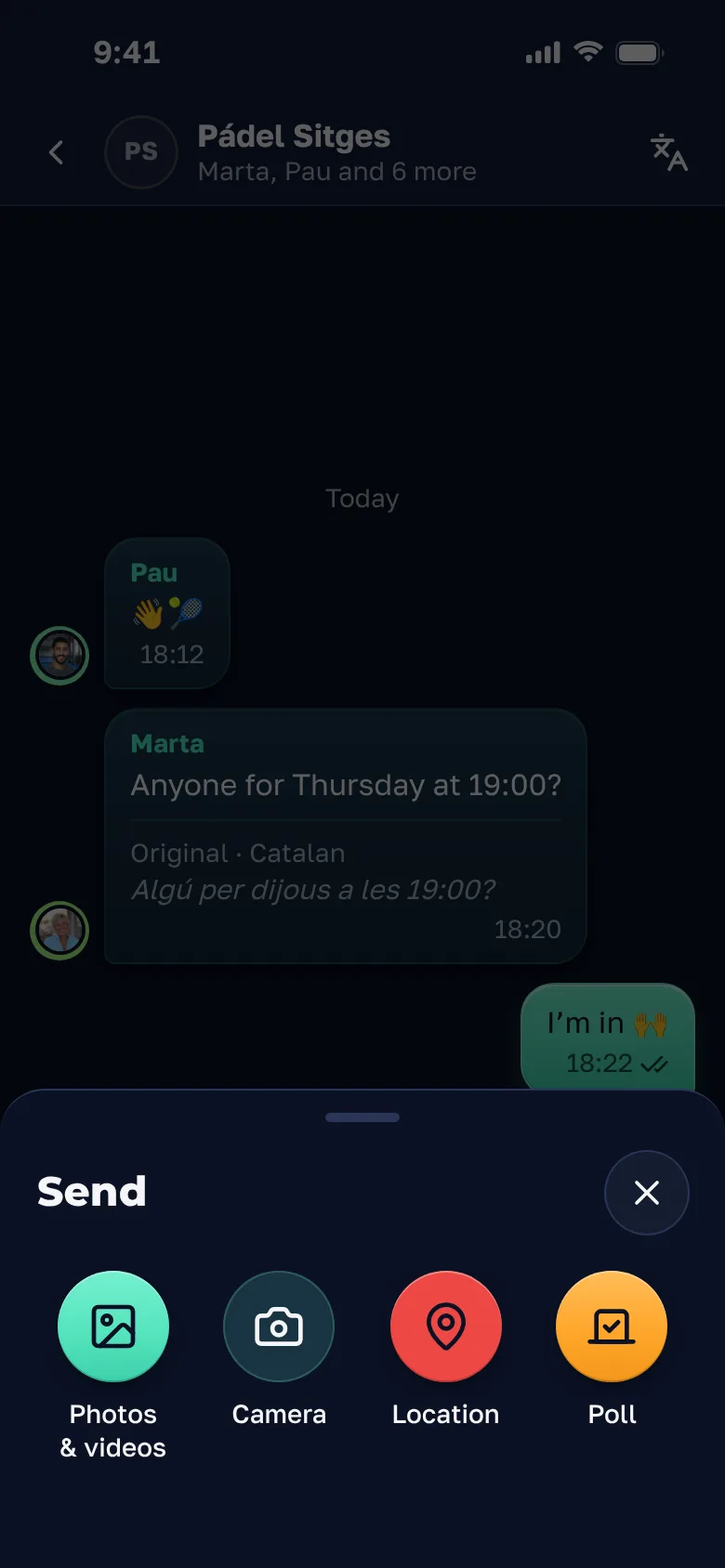
2. Choose “Photos & videos” or “Camera”. You can add a caption before sending.
In groups, the same sheet also has “Location” and “Poll”.
How to ask Paddy
1. Paddy is the card at the top of “Chats”, in every folder. It sums up what’s going on for you right now. Tap “Open”.
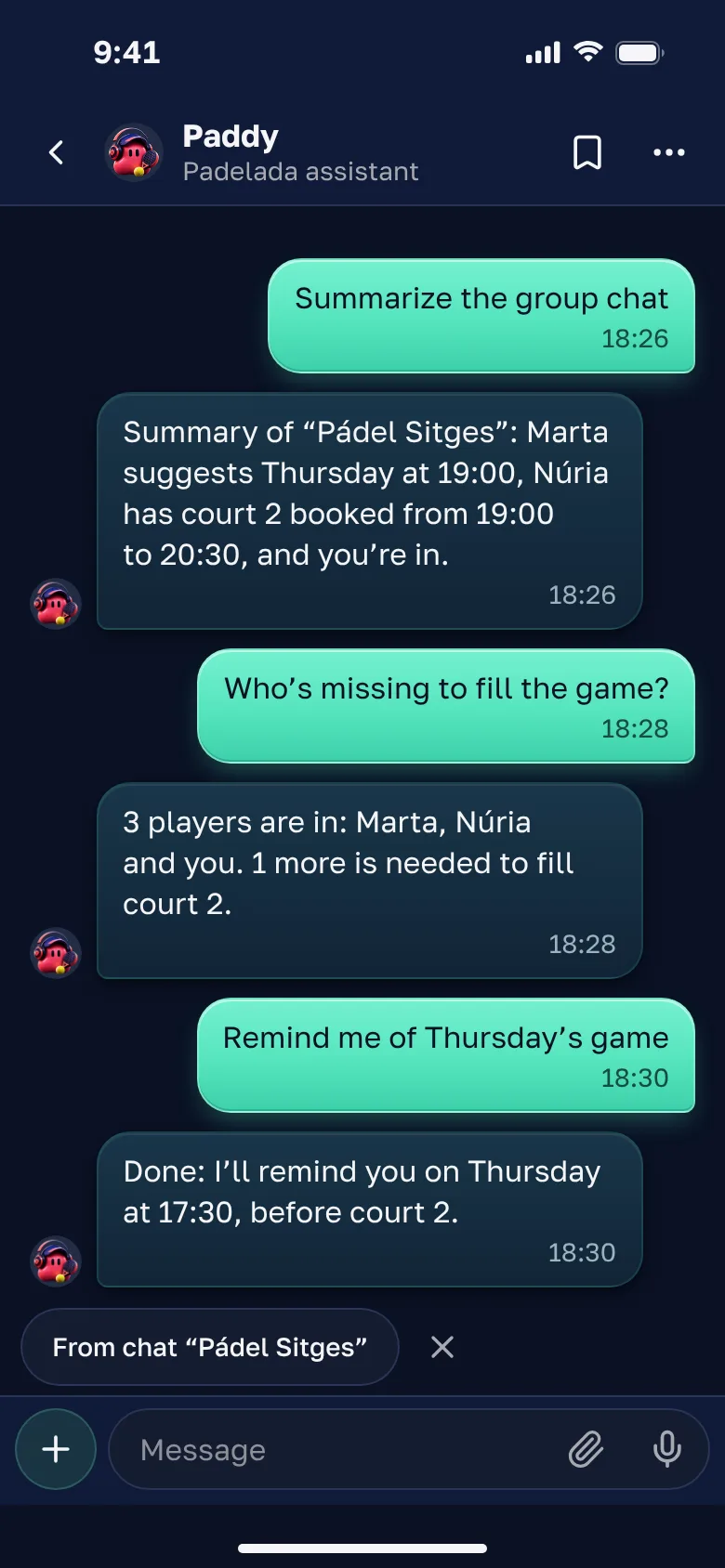
2. Ask, for example: “Summarize the group chat”. Paddy answers right in the chat, in your language.
How to mute, archive or mark a chat as unread
1. Tap a chat in the list and hold.
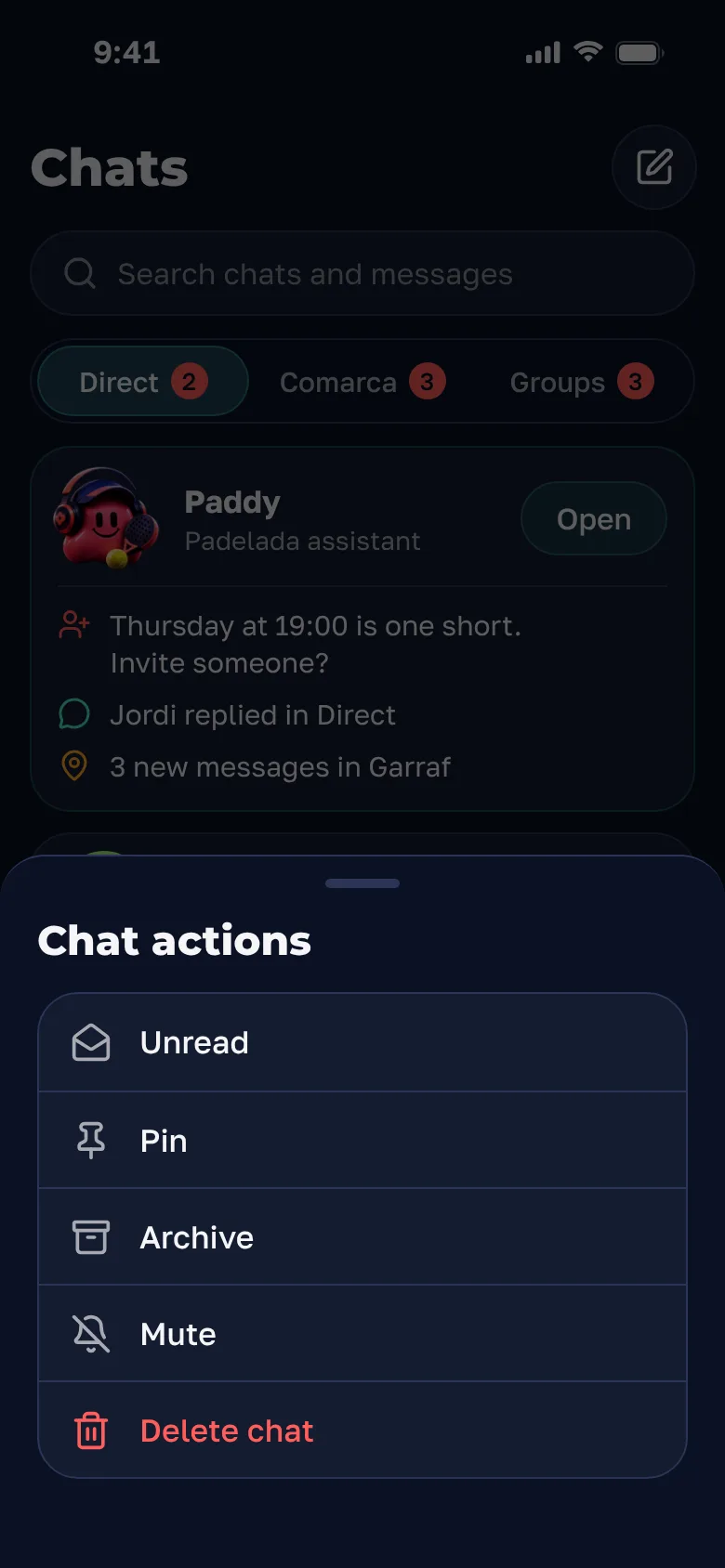
2. Choose: “Unread”, “Pin”, “Archive”, “Mute” or “Delete chat”.
You can do the same by swiping: right for “Unread” and “Pin”, left for “Archive”, “Mute” and “Delete chat”. You can delete a direct chat and a match chat. The archive is the “Archive” row at the very bottom of the chat list.
How to reply to, forward or pin a message
1. Tap a message and hold. The reactions are at the top.
2. Below are “Reply”, “Forward”, “Copy”, “Pin” and other actions.
How to report or block
1. To report a message, hold it and tap “Report”. Choose a reason and send.
2. To report a player, open their profile and tap “…” at the top right.
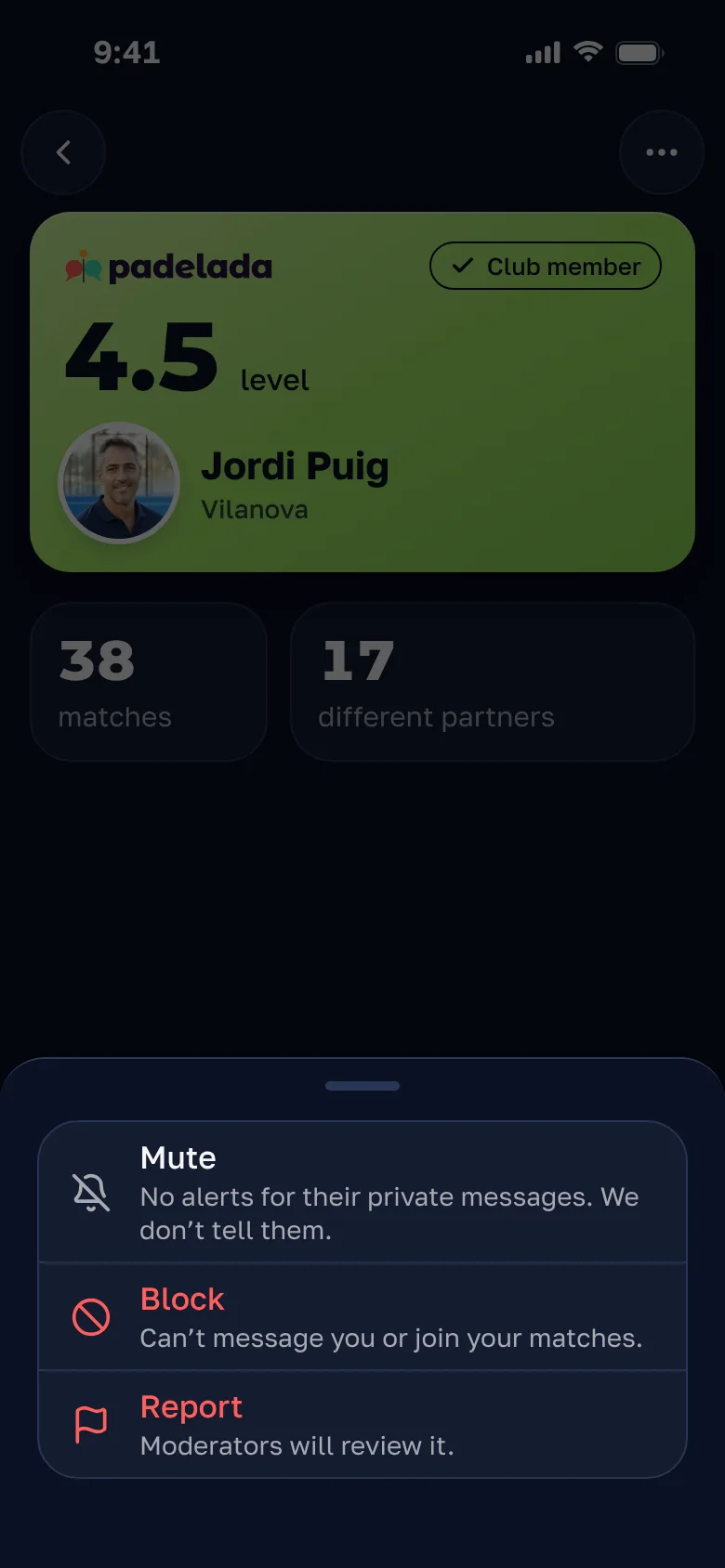
3. “Block”: they can’t message you or join your matches. “Mute”: no alerts for their direct messages.
If you are a moderator
A moderator keeps order in their own chat: a group admin in their group, the captain in the comarca chat and its groups, a club admin in the club chat. Paddy brings you the reports from your chat in your private chat.
- Paddy tells you which chat, which message and why it was reported. We don't show who reported it, only how many people.
- «Hide»: nobody sees the message any more. «No violation»: the message stays and the report is closed.
- «More»: «Mute» for 24 hours or 7 days, «Remove from group», «Open chat». Made a mistake? «Undo» within 10 minutes.
- In the chat itself: «…» at the top → «Moderation».
If you don't answer within 24 hours, the report goes up: from the group admin to the captain, from the captain to the Padelada team. Threats, minors, sexual content and fraud are hidden at once and reach you and the team at the same time. Only the Padelada team can block a whole account or handle reports about the moderator themselves.
Frequently asked questions
How much does the messenger cost?
Messaging is free: messages, direct and group chats, voice messages with a transcript, text translation, photos and video.
Which language are messages translated into?
Into the chat language. Until you pick another, it is the same as the app language. You can change it in your profile, under “Languages”. There you can also mark the languages you understand without translation: messages in them arrive as they are.
Can I edit or delete a message?
You can edit your own message for 15 minutes after sending it. You can delete it for yourself or for everyone; if you delete it for everyone, a note is left where the message was.
How long can a voice message be?
A single voice message can be up to 15 minutes long. If you’d rather not speak out loud, tap the microphone briefly and dictate text.
What video can I send?
Video up to 2 minutes long and up to 50 MB.
Who can write in the comarca chat?
All players in the comarca, from day one. Links, phone numbers, location and polls in the comarca chat are for Club Padelada members.
What happens after I report something?
The chat moderators will see the report. If three people report a message, it is hidden automatically. If you block a player, we don’t tell them.
Can I see that a message was read?
Yes. Under your own message you can see whether it was sent, delivered or read.
How do I turn off notifications at night?
In Profile: “Settings” → “Notifications” → “Games, chats and tournaments”. There you’ll find “Push notifications”, “Invite me to games” and quiet hours: by default there are no notifications from 22:00 to 8:00, and you can change the times in the “From” and “To” rows. You can also mute a single chat: press and hold it in the list and choose “Mute”.
How do I stop strangers messaging me privately?
In Profile: “Settings” → “Privacy” → “Who can message you privately”. Choose “Teammates only”: that’s the people you’ve already played with.