
Level and rating
Your true level, earned in fair play
You set your starting level yourself. After that, only matches whose score all four players (in an open tournament, the organiser) have confirmed can change it.
What it can do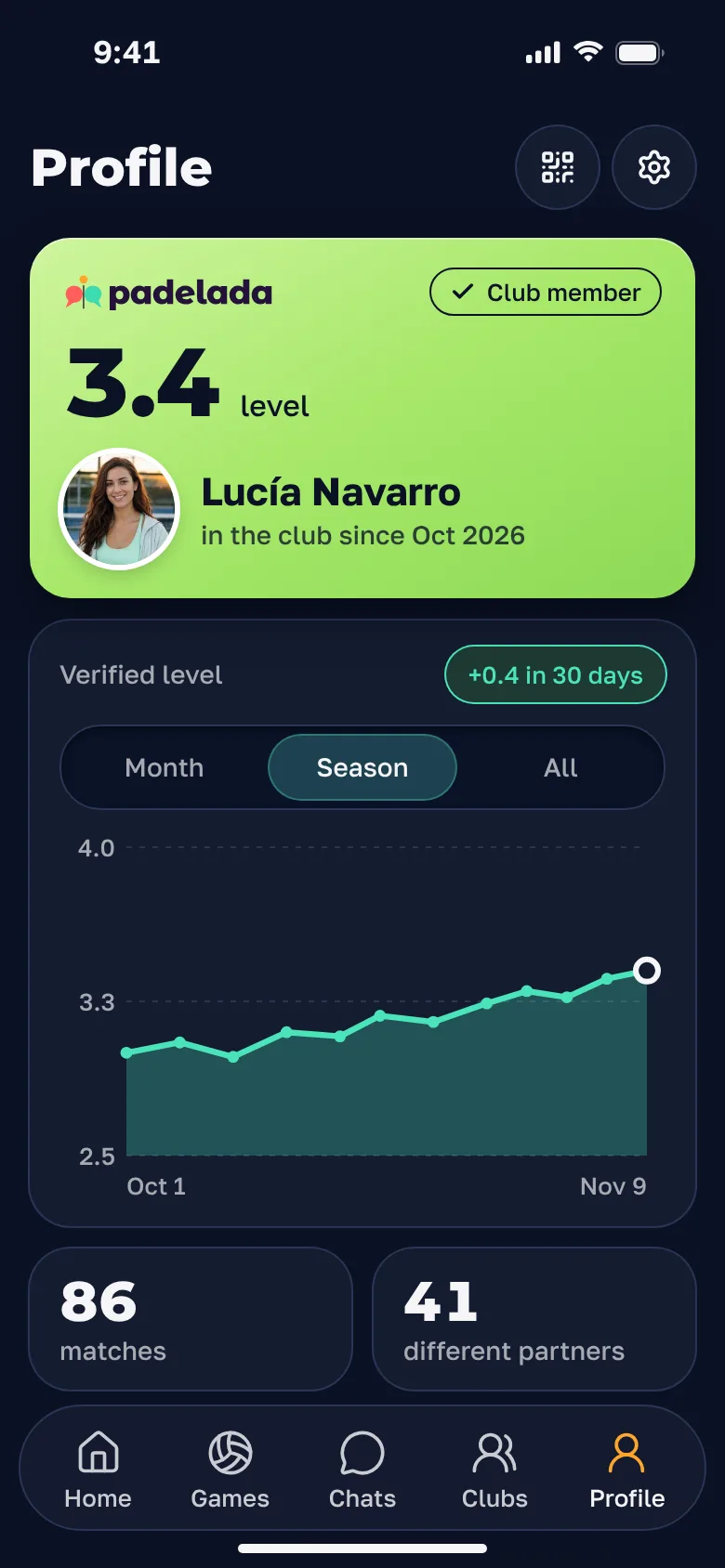

Why you can trust the level
Elsewhere, people name their own level, or pay a coach for one. In Padelada, you can neither name your level nor buy it. The sign-up questionnaire gives only a starting point, and after that the matches do the talking.
A match counts towards your level once all four players (in an open tournament, the organiser) have confirmed the score. Silence doesn’t confirm a score.
One level for all clubs and cities: wherever you step onto a court, they already know you. You see every change to your level in the app.
Level and rating
Your Padelada level is a number from 0 to 7, just like the padel levels you know. It changes only after a match whose score all four players have confirmed, each from their own phone. That is why you can trust it.
Free for everyone: your level, the rating with its full history, the chart, QR matches and score confirmation. Keeping score on your phone is free too; on Apple Watch it is part of Plus and Max.
How to set your starting level
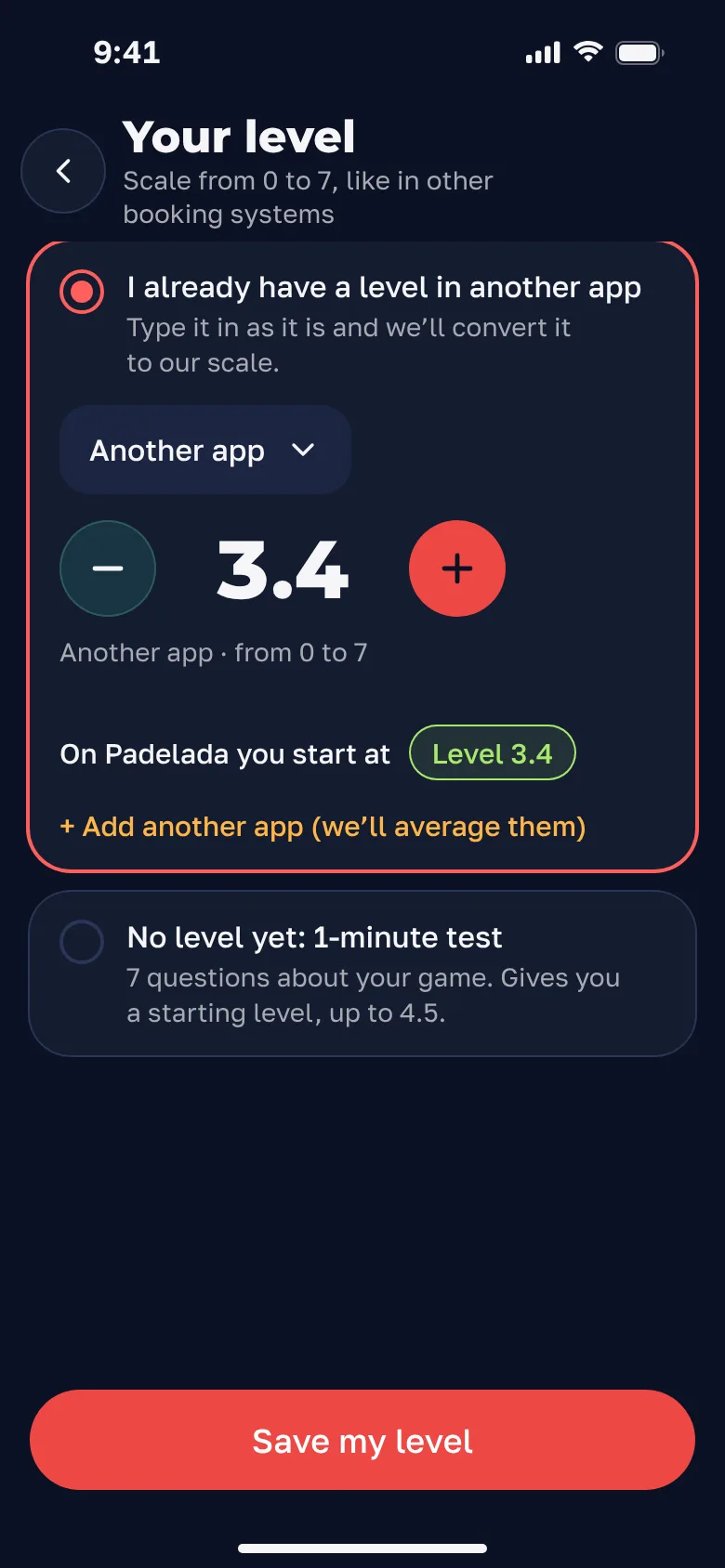
1. When you sign up, on the “Your level” step, choose “I already have a level in another app”. Pick the app and set the level with the − and + buttons.
2. Below, you can see the level you will start at in Padelada. Tap “Save my level”.
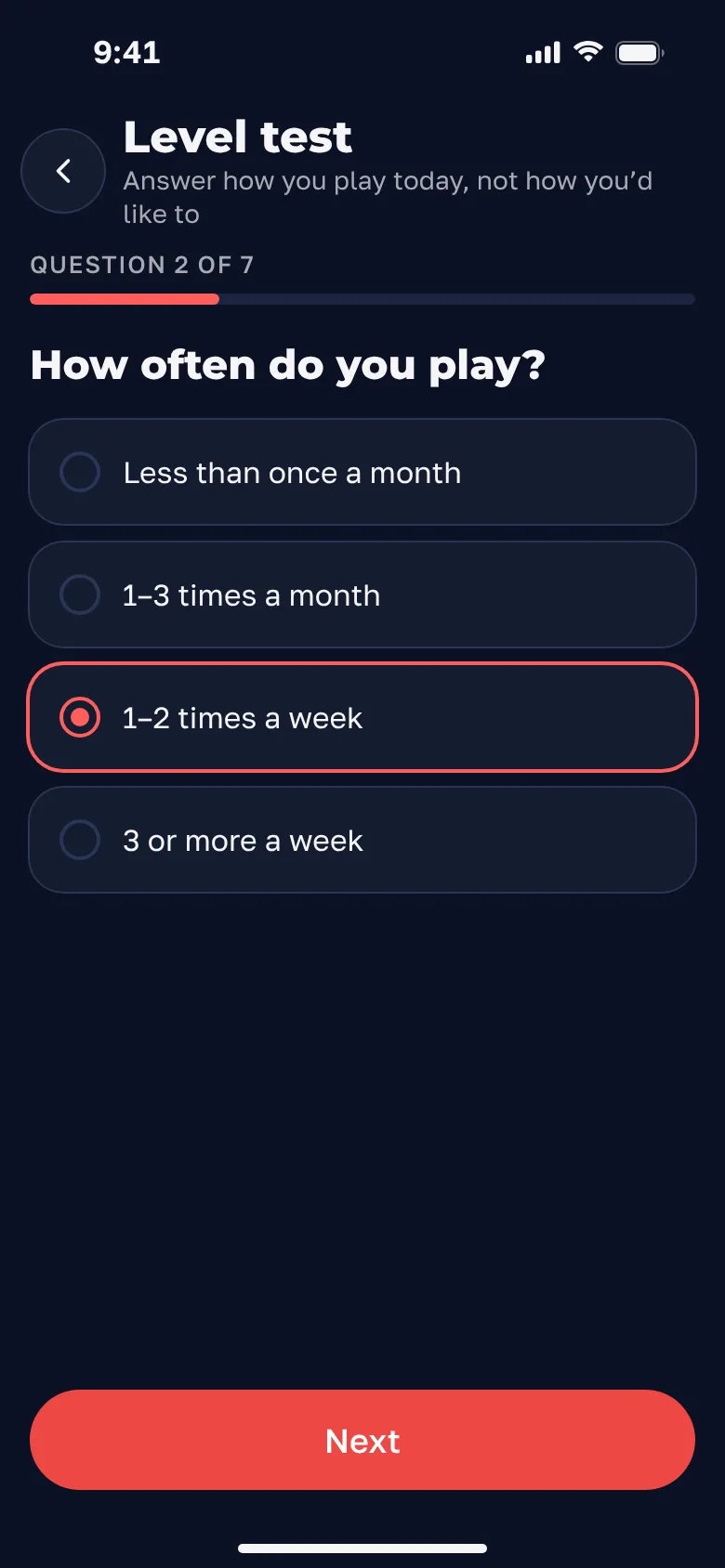
3. No level yet? Choose “No level yet: 1-minute test”. Answer 7 questions about your game: the test gives you a starting level, up to 4.5.
You set your starting level once. After sign-up you can’t change it by hand: from then on, only confirmed matches move your level.
How to play a QR match
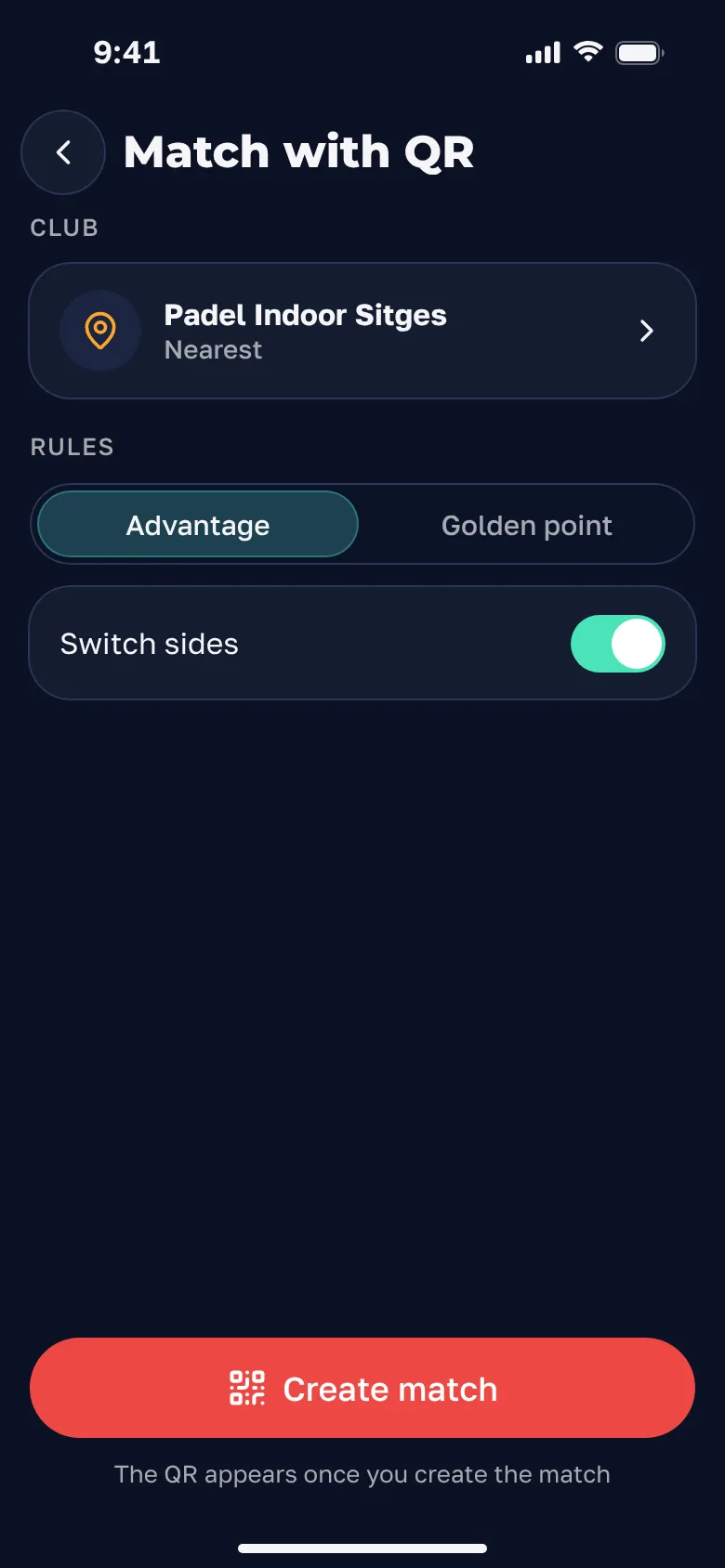
1. On the “Games” tab, tap the QR icon at the top right. Choose the club and the rules, then tap “Create match”.
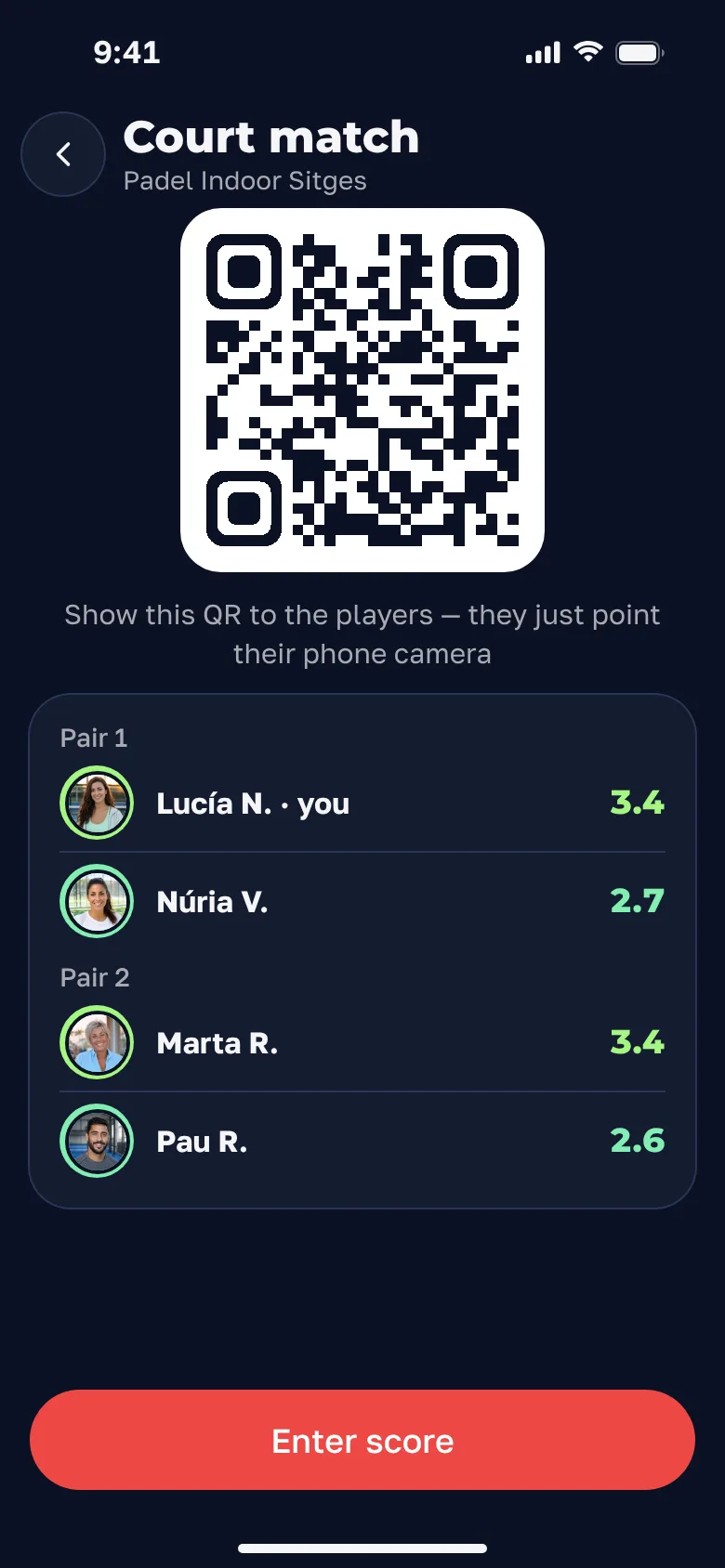
2. Show the match QR to the other three players: they point their phone camera at it and join the match.
3. After the game, tap “Enter score”.
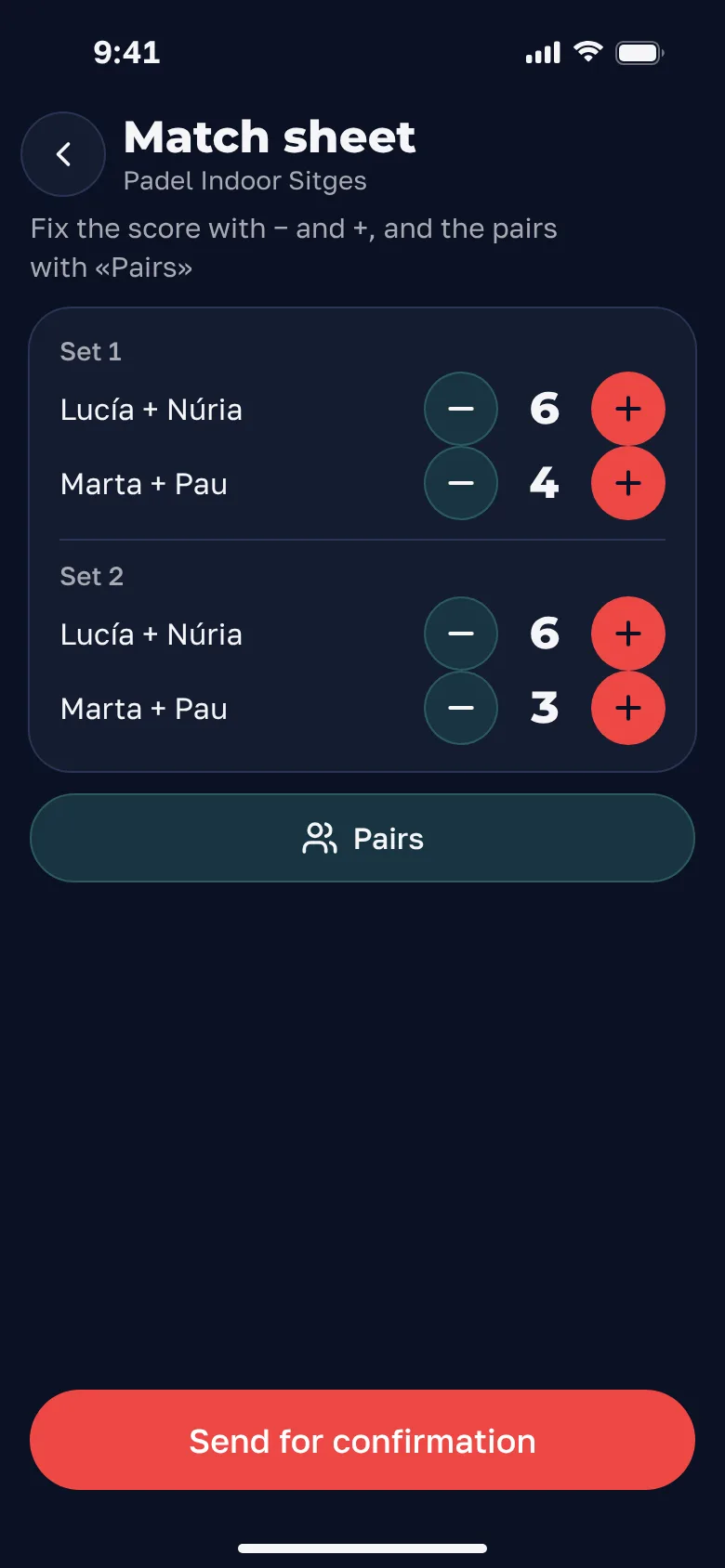
4. Set the games of each set with the − and + buttons. If the pairs changed, tap “Pairs”. Then tap “Send for confirmation”.
Keeping score on your phone is free for everyone. Keeping score on Apple Watch is part of Plus and Max.
How to confirm the score: all four players
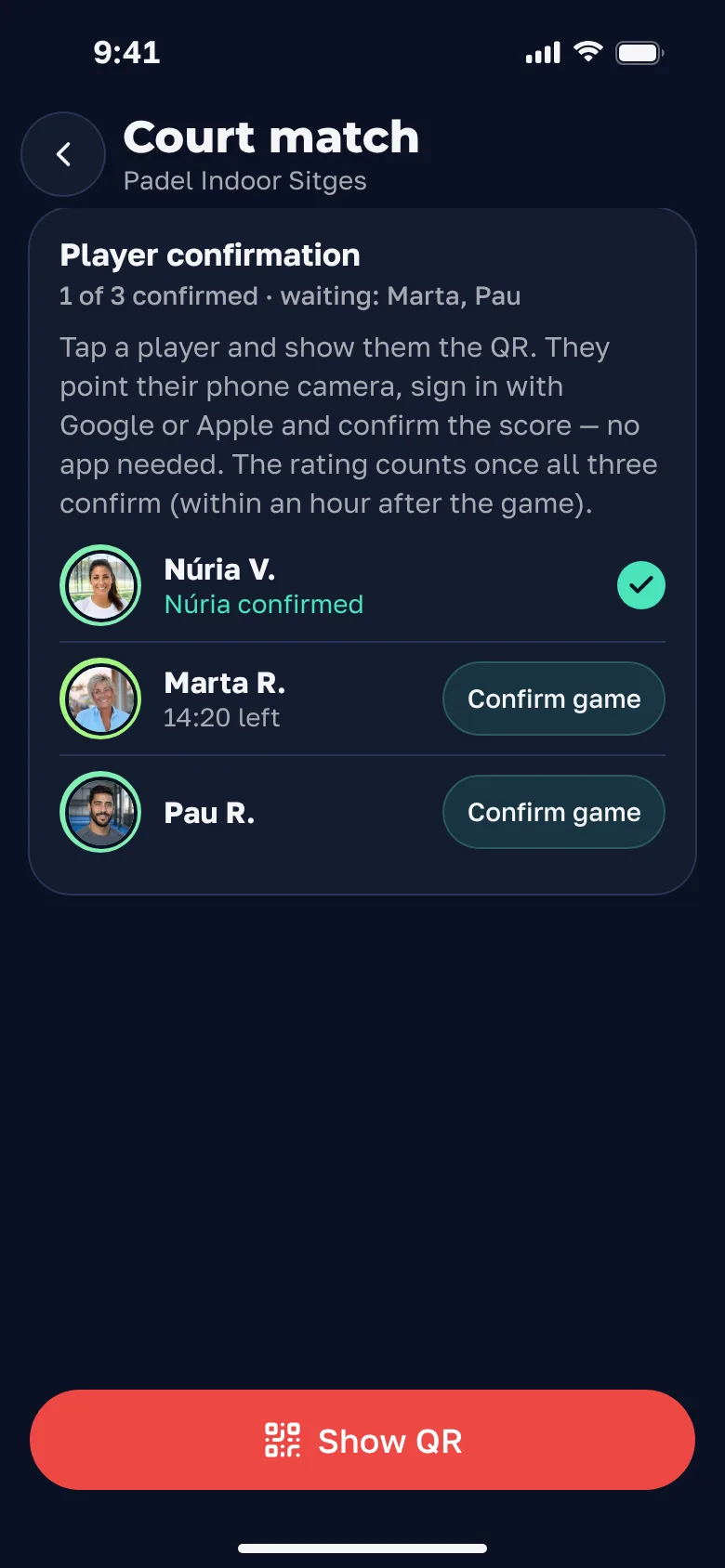
1. The person who entered the score sees “Player confirmation”. They tap “Confirm game” next to each player and show that player their personal QR.
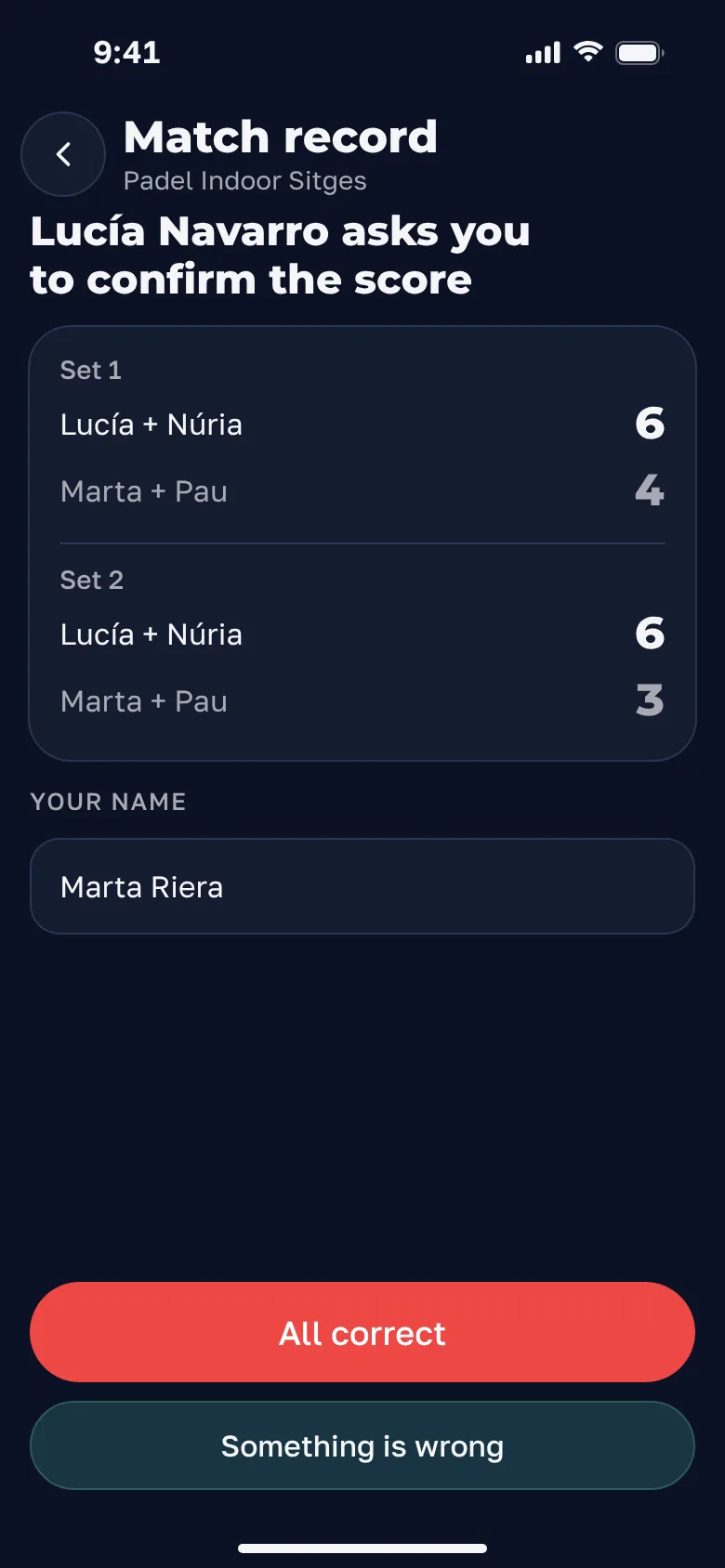
2. The player points their phone camera at it, signs in with Google or Apple, checks the match record and taps “All correct”.
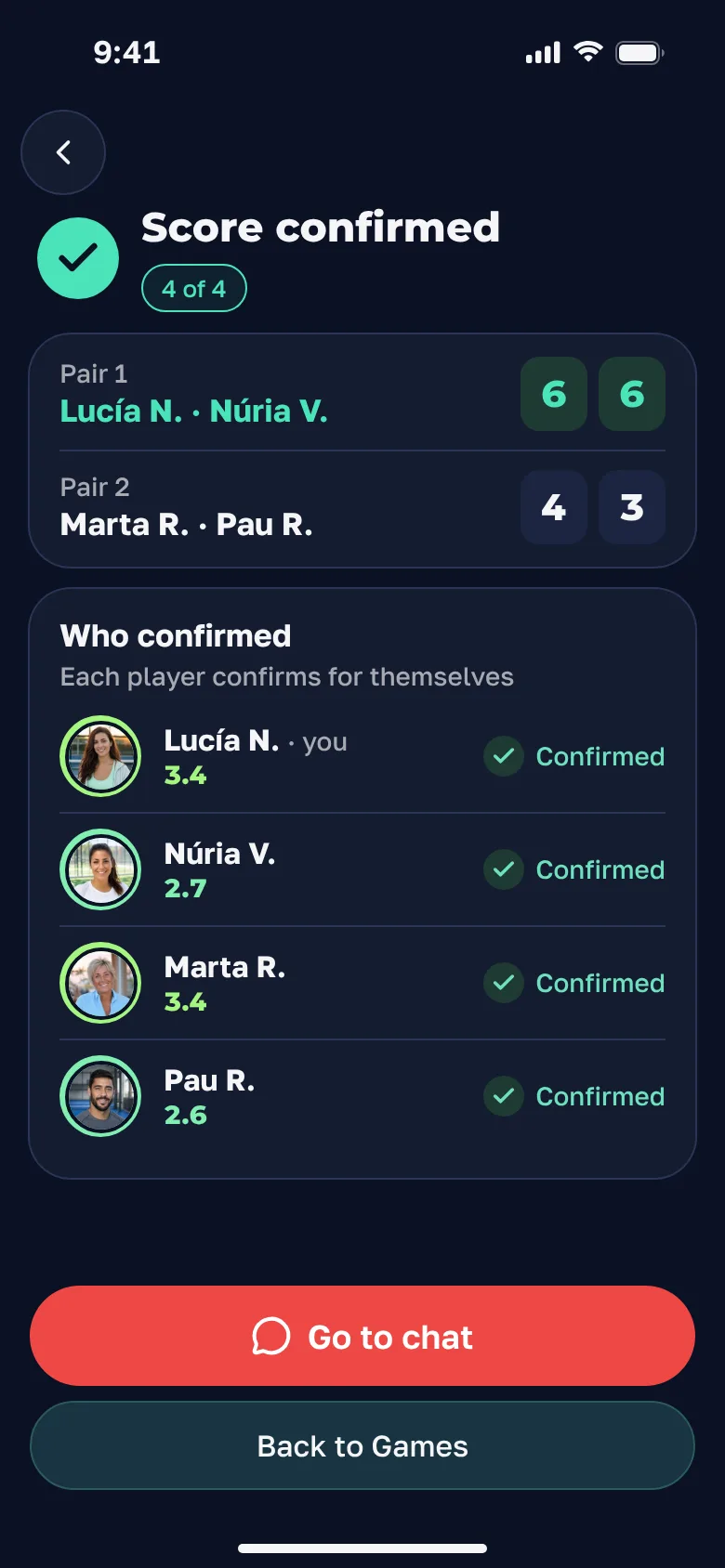
3. The person who entered the score already agrees with it. Once the other three confirm, the screen shows “Score confirmed · 4 of 4” and the match counts towards your level.
Everyone confirms for themselves, from their own phone: your partner’s or your pair’s confirmation doesn’t replace yours. You can’t confirm from the phone of the person who entered the score.
What happens if someone doesn’t confirm
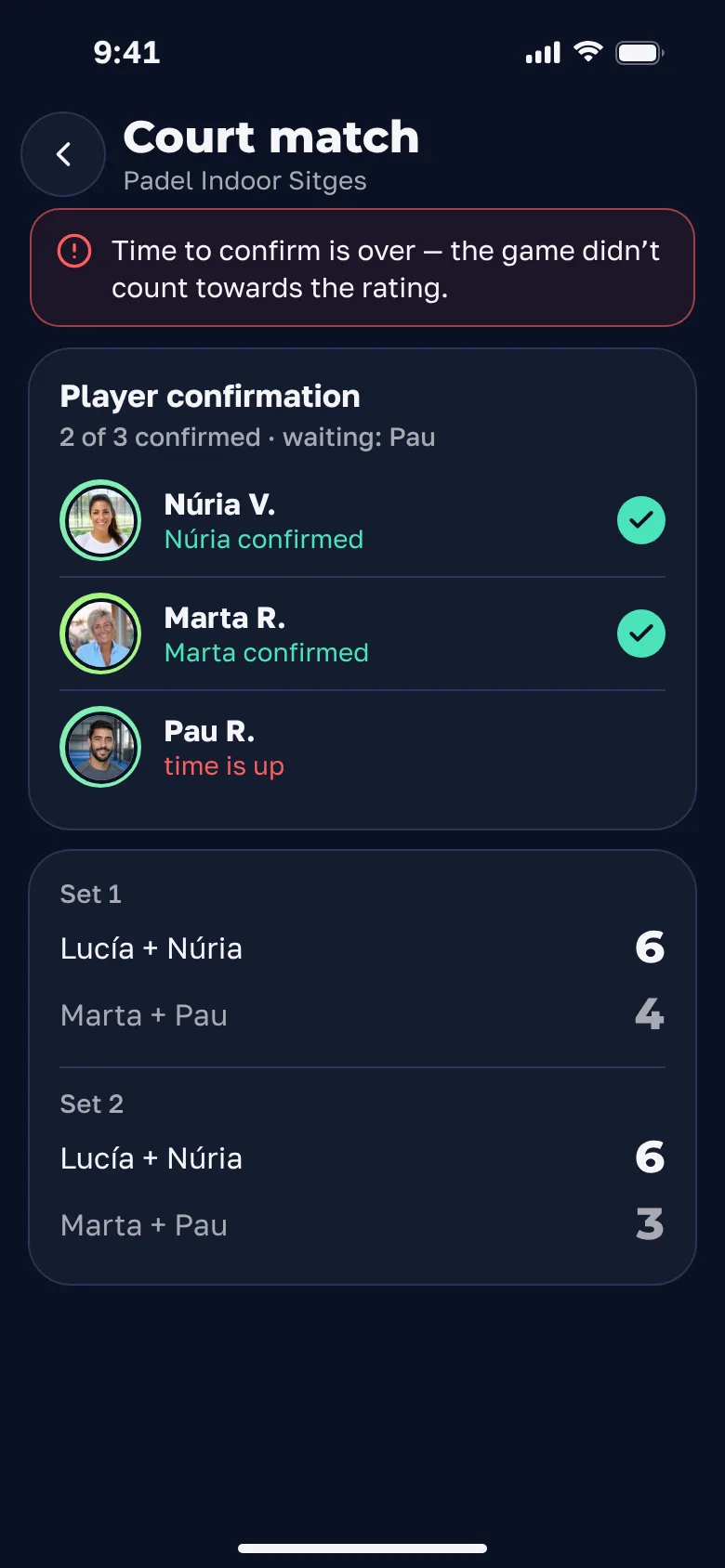
1. There is one hour after the game to confirm. If time runs out and not everyone has confirmed, the game stays in “Games”, but the rating doesn’t change for it.
2. Silence doesn’t count as agreement: until a player taps “All correct” themselves, they haven’t confirmed.
Three confirmations out of four are not enough for the rating. Each player’s personal QR works for 15 minutes from the first time it is shown.
What to do if the score is disputed
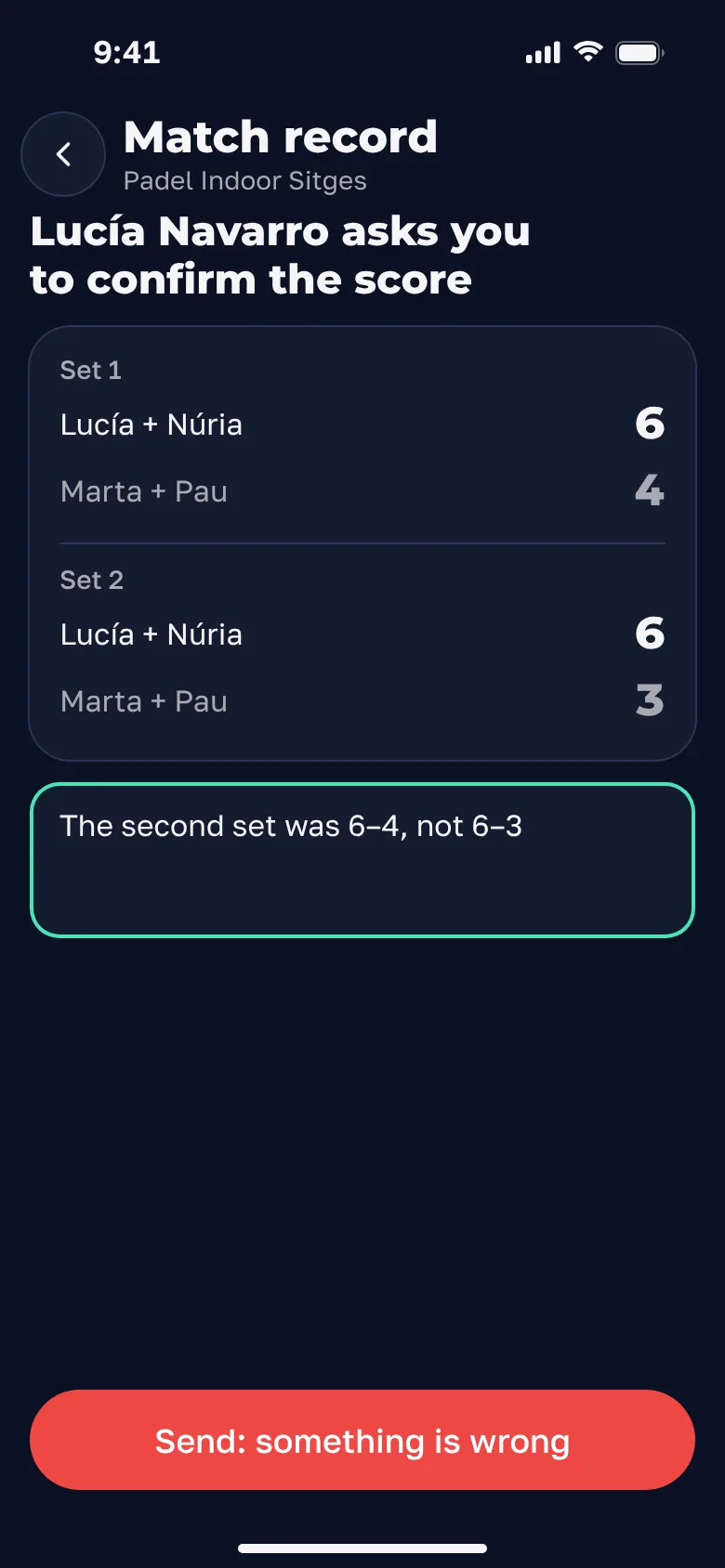
1. If the match record has a mistake, the player taps “Something is wrong”, writes what is wrong and sends it.
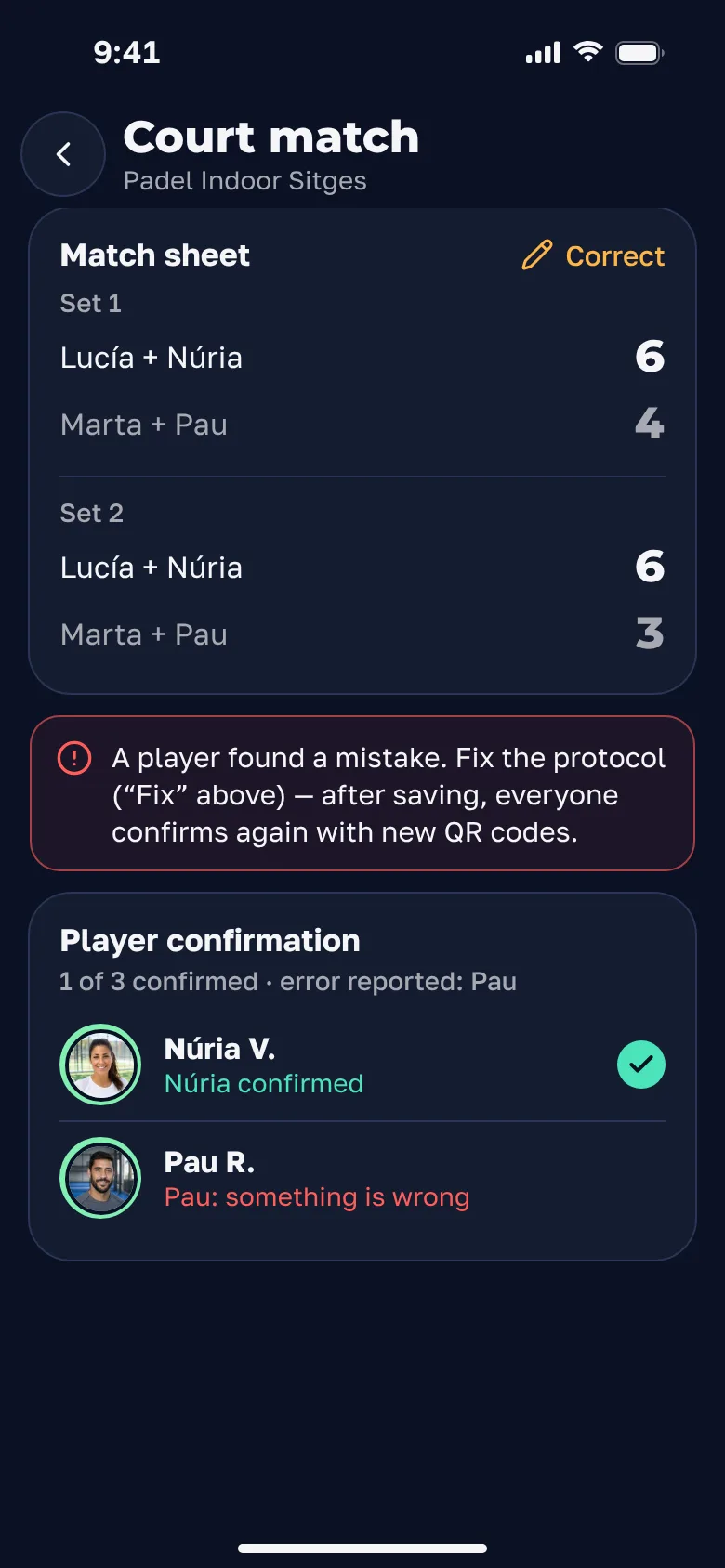
2. The person who entered the score sees who reported the mistake. They tap “Correct”, fix the record and send the correction.
After the correction, the earlier confirmations are cleared: everyone gets a new QR and confirms the score again, with a fresh hour. While the score is disputed, the rating doesn’t change.
What reliability is
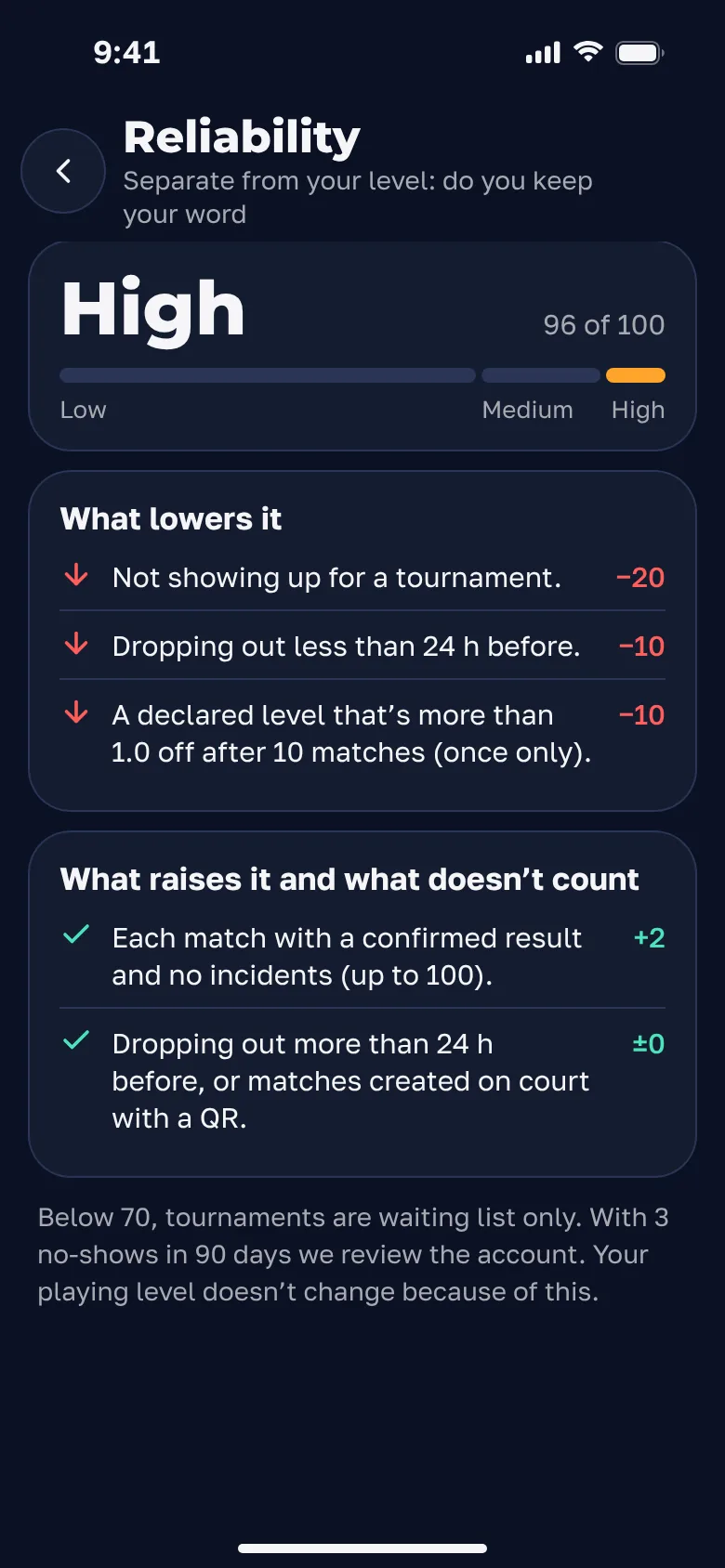
1. Reliability is separate from your level: it shows whether you keep your word. It is a number up to 100: high, medium or low. You’ll find it under Profile → ⚙ “Settings” → “How reliability works”.
2. It goes down if you don’t show up for a tournament, drop out less than 24 hours before, or if the level you declared turns out more than 1.0 off your play after 10 matches.
3. Every match with a confirmed score and no incidents brings it back little by little, up to 100, except matches created on court by QR.
For your first 5 matches you see “New player” instead of a number. Below 70, tournaments are waiting list only. To run open tournaments you need good reliability. Your level does not depend on reliability.
Where to see your level and chart
1. Your level is on the “Profile” tab: a number on a scale from 0 to 7, and how it changed over 30 days.
2. Under it is the chart. The “Month · Season · All” switch changes the period.
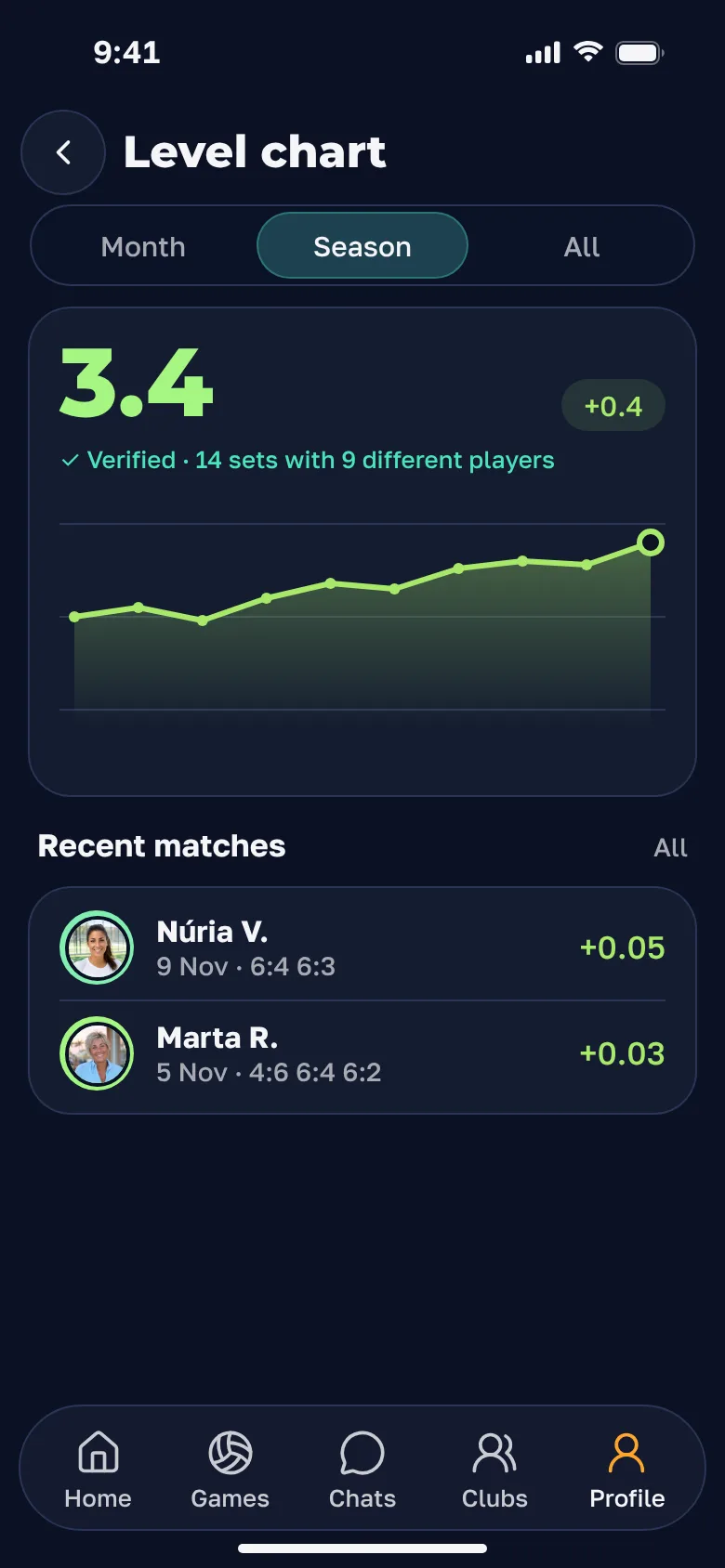
3. Tap your level to open the “Level chart” with your latest matches and how much each one changed your level.
The full rating history is free. At the bottom of the screen you’ll find “How the rating works”.
What “Verified level” means
1. When your level has been proven by play, “Verified level” appears above the number.
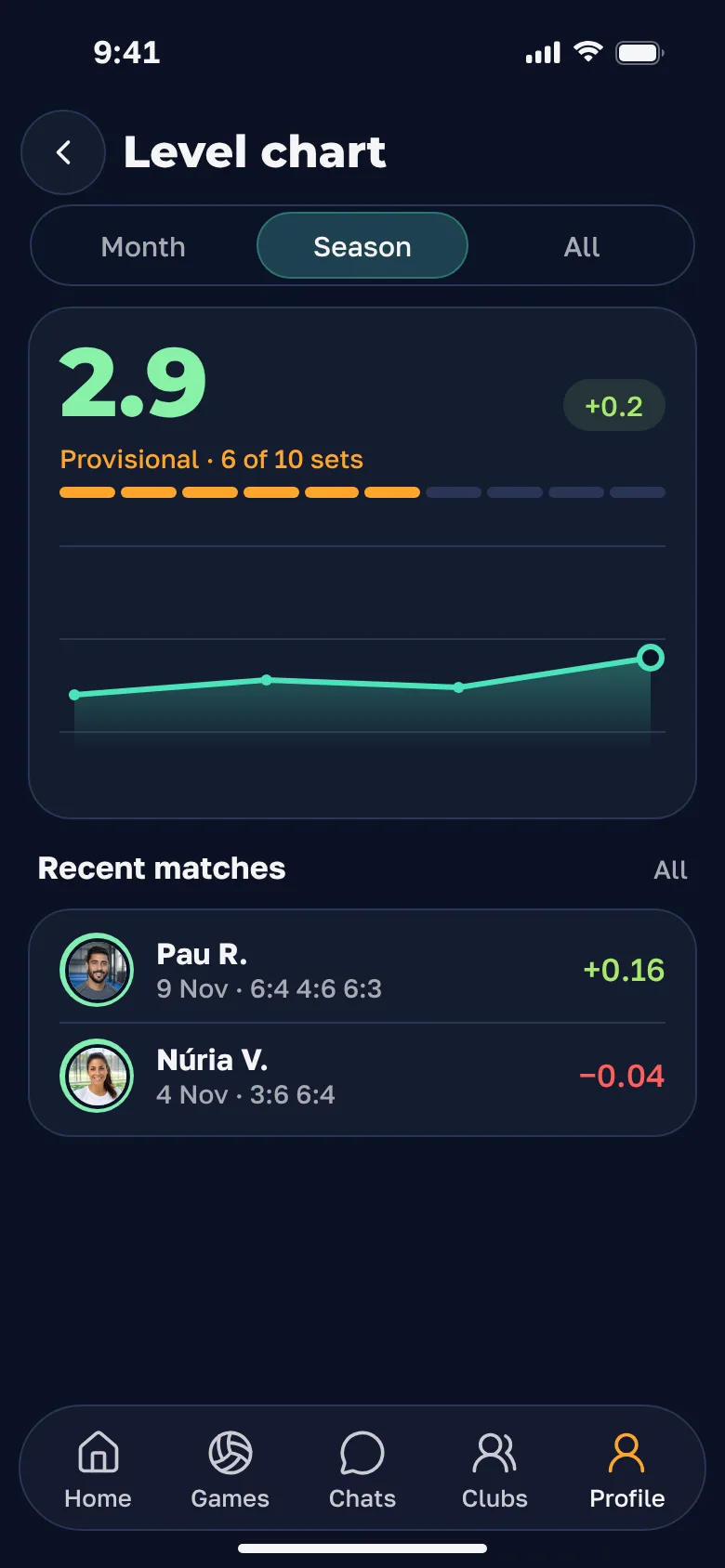
2. Until then it is provisional: “Provisional · 6 of 10 sets”. At the start your level moves faster, to find your real one.
3. After 10 counted sets against at least four different opponents, your level becomes verified.
An organiser can open a tournament only to players with a verified level.
Frequently asked questions
Can I change my level by hand?
No. You set your starting level when you sign up; after that only matches whose score all four players confirmed change it.
Why didn’t a match change my level?
Not all four players confirmed, the time to confirm ran out, or the score was disputed. Matches with fewer than four players, or with a player who has no account, don’t change levels either.
Do I need the app to confirm a score?
No. Point your phone camera at your QR and sign in with Google or Apple. You have to confirm from your own phone.
How long do I have to confirm?
One hour after the game. Each player’s personal QR works for 15 minutes from the first time it is shown.
How do tournament matches count?
In open tournaments and Torneo Padelada, the organiser confirms the score for the rating. In a private tournament (“Americano for your crew”) it works as usual: all four players, each for themselves.
How is the rating calculated?
Every set counts: not only who won, but the score and who against. The details are on the “How the rating works” page.
Who can see my level?
Other players see your level and reliability on your player card.
How much does it cost?
Your level, the rating, the history, the chart and QR matches are free for everyone. Plus and Max are for Apple Watch and other extras.
How do I change my name, photo or gender?
In Profile, open “Settings” → “Profile”: your photo and name are there. The “Gender” row is in the same Settings. Gender is needed for men’s, women’s and mixed games and tournaments, so you can’t change it while you’re signed up for a game or tournament with a category.
How do I delete my account?
In the app: “Profile” → “Settings” → at the very bottom, “Delete my account”. In the web version (app.padelada.com): “Settings” → “Account and session” → “Delete my account”. Your profile, level, photo, email and phone number are deleted; match results stay with the other players, without your name. If you don’t have the app, write to hola@padelada.com from the address linked to your account.