
New Apple Watch app
Think about the game. Padelada does the rest
On court, forget everything else and think only about the game. Padelada takes care of the score: the watch runs the workout, the score and the match sheet, while your phone rests quietly in your bag.
Keeping score on your phone is free. Apple Watch comes with Plus and Max.
What it can do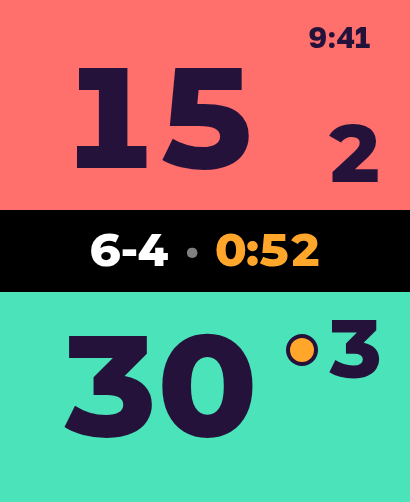
Apple Watch in Padelada
On your watch you keep score right on court: tap one half of the screen to give the pair a point, turn the crown to fix a mistake. The watch also records your workout: time, heart rate and calories. After the match, confirm it by QR and see your game stats.
Keeping score on your phone is free for everyone. The Apple Watch app is part of Plus and Max, including for a game started from your phone. The watch works only paired with an iPhone.
How to start: “My game” or “My tournament”
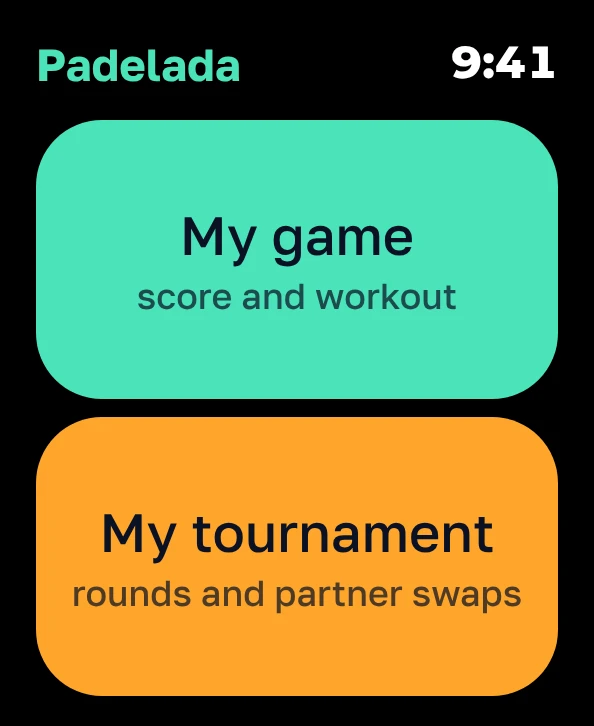
1. Open Padelada on your watch: there are two buttons, “My game” and “My tournament”. If your phone has an upcoming game or tournament, it shows above them. “My game” is a regular match: the watch keeps score and records your workout.
2. “My tournament” is several rounds in a row with partner swaps: the watch scores each round and then asks who you play with next.
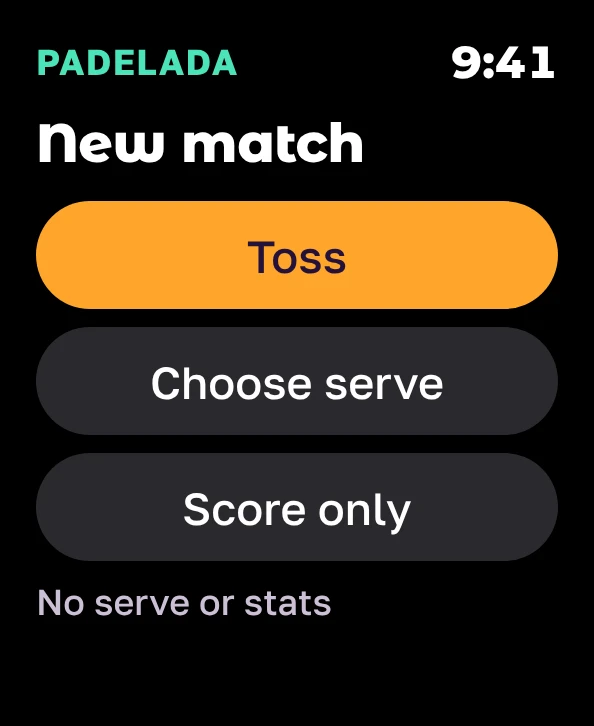
3. The watch asks “Are you 3 or 4?”: tap your number and “Start”. Then, on “New match”, choose “Toss”, “Choose serve” or “Score only”.
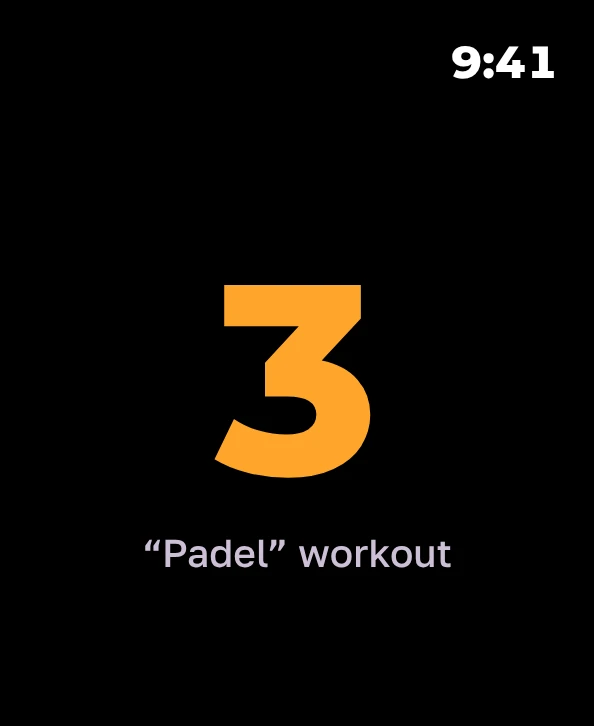
4. A countdown of 3, 2, 1, and the scoreboard appears. The workout runs from the first second.
Want just the workout, with no score? Swipe left from the scoreboard to the “Match” menu and tap “Stop scoring”.
How the watch starts the workout by itself
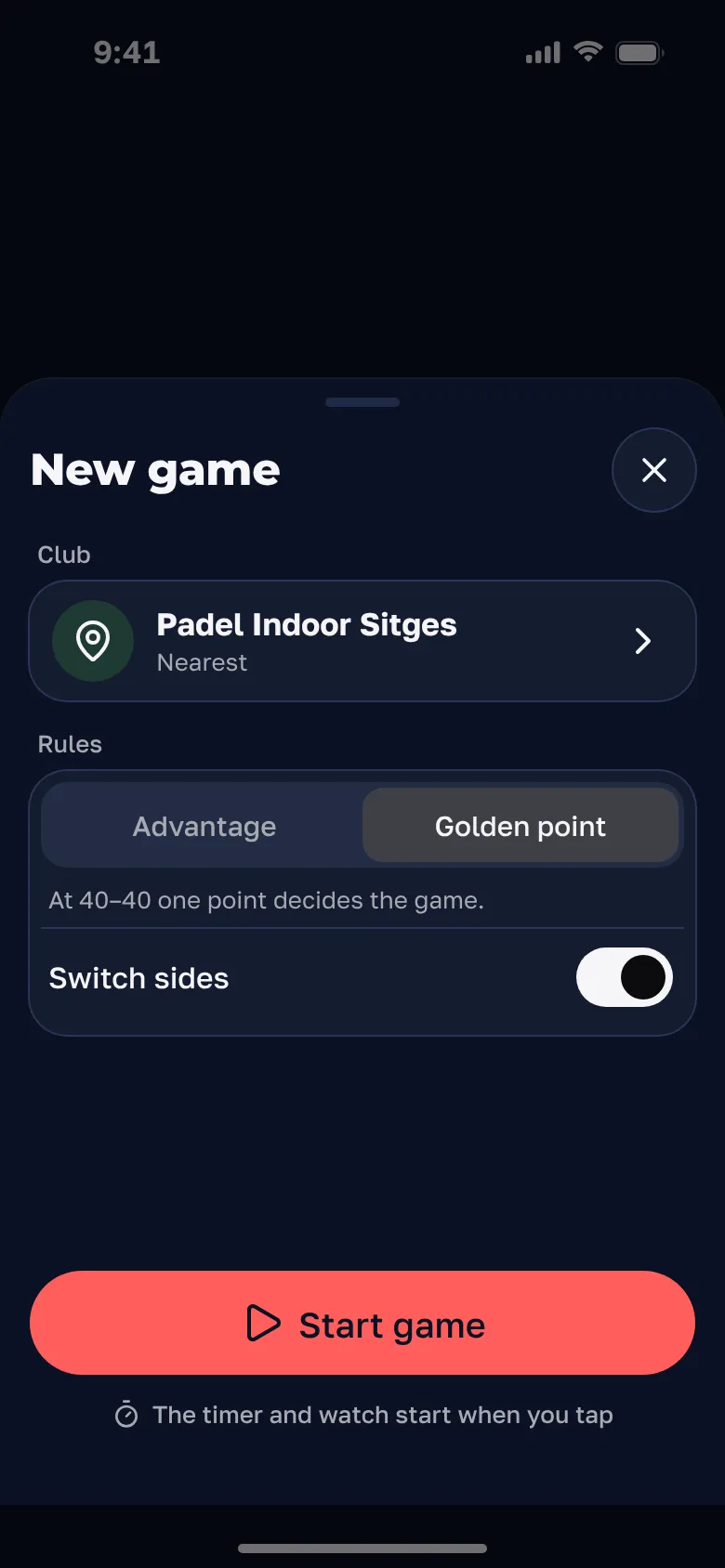
1. On your iPhone, tap “Playing now”, choose the club and the rules, and tap “Start game”.
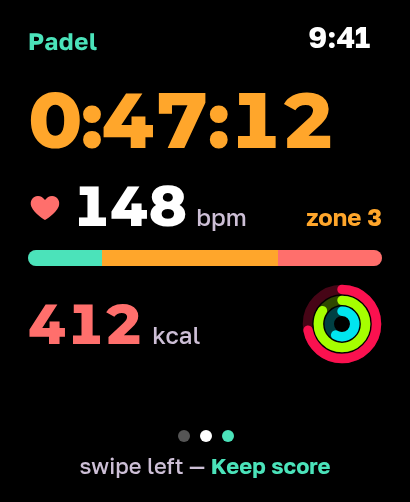
2. On the watch, the “Padel” workout starts by itself, so you don’t need to open the app. At the bottom is a hint: “swipe left — Keep score”.
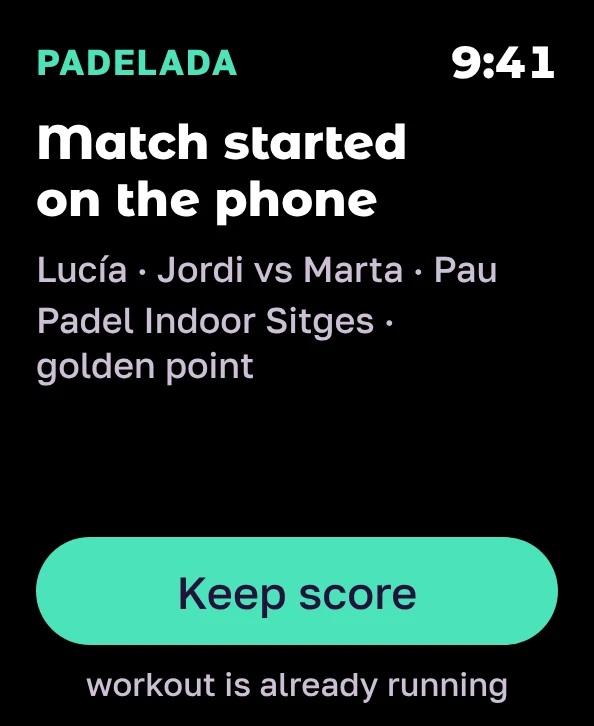
3. Swipe left to see the “Match started on the phone” screen. Tap “Keep score” to score on the watch. If you don’t, the watch simply records the workout.
Meanwhile your phone shows “Score is kept on the watch” and the score from the watch.
Three screens during a game
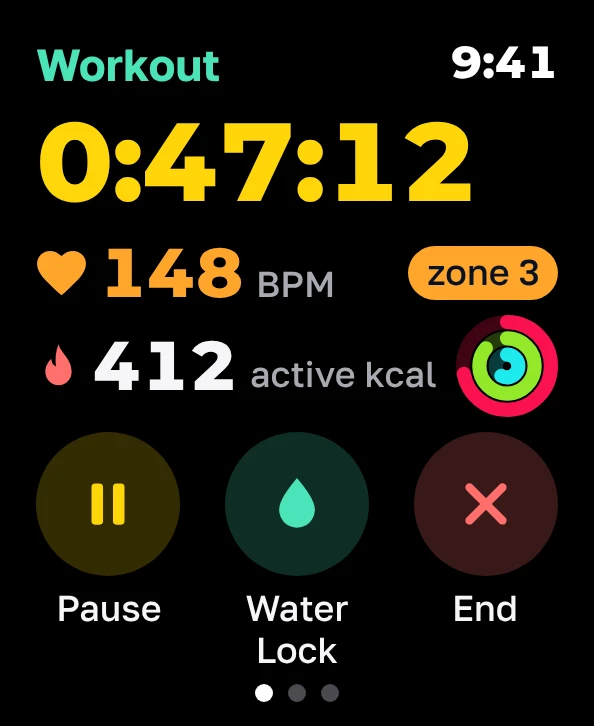
1. Swipe right from the scoreboard for “Workout”: playing time, heart rate with its band colour (the colour shows how hard you’re working), active calories and your Apple Activity rings.
2. At the bottom: “Pause”, “Water Lock” (the screen ignores drops and accidental taps) and “End” to finish the workout.
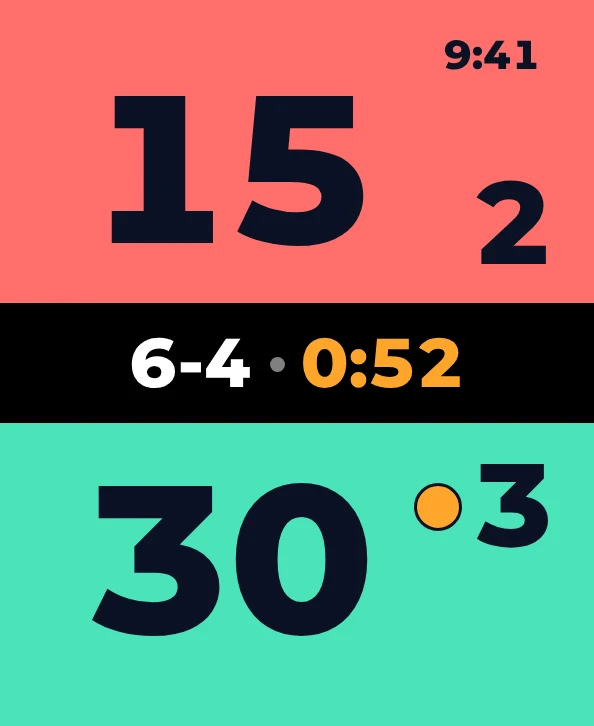
3. In the middle is the scoreboard. Tap your lower half to give your pair a point, or the upper half to give one to your opponents.
4. The crown works as before: turn it back to fix the score.
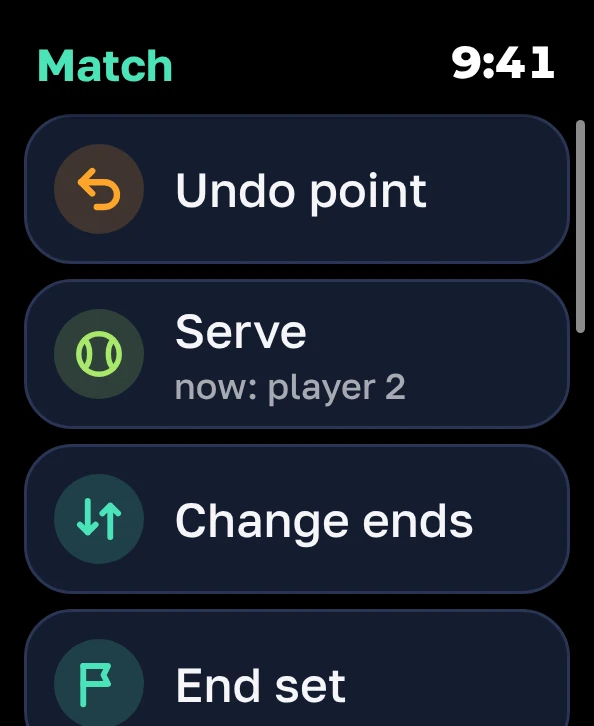
5. Swipe left from the scoreboard for the “Match” menu, where all game controls live: undo point, serve, change ends, end the set or match, toss, rules, who keeps score and the “With serve” switch.
The dots at the bottom show which of the three screens you’re on. To get back to the scoreboard, swipe the other way.
How to keep score with one tap
1. Tap the lower, mint half to give your pair a point. The large numbers are the points in the game, the games are on the right, and the dot shows who serves.
2. The upper, coral half gives your opponents a point. In the middle you see the set score and the playing time.
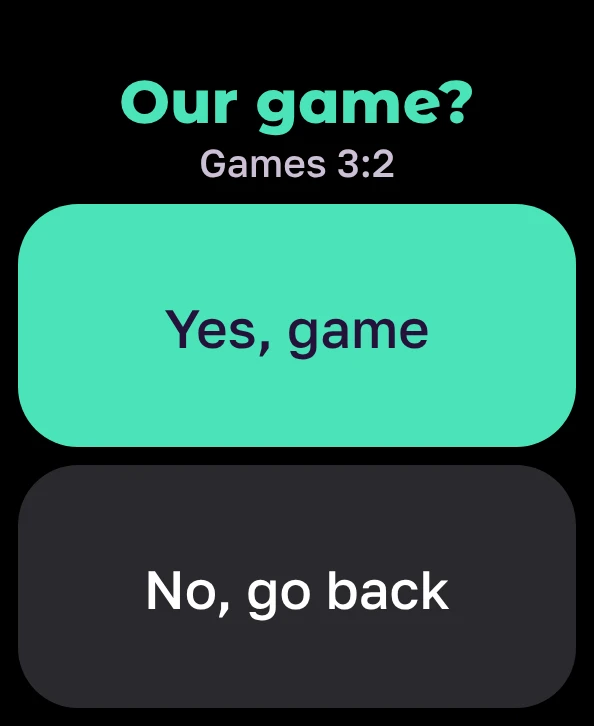
3. When a point would end a game from advantage, the watch asks again: “Our game?”. Tap “Yes, game” or “No, go back”. That way an accidental tap can’t give away a game.
You always mark the point yourself: the watch doesn’t recognise play on its own. It reminds you to change ends with a vibration.
How to fix the score with the crown
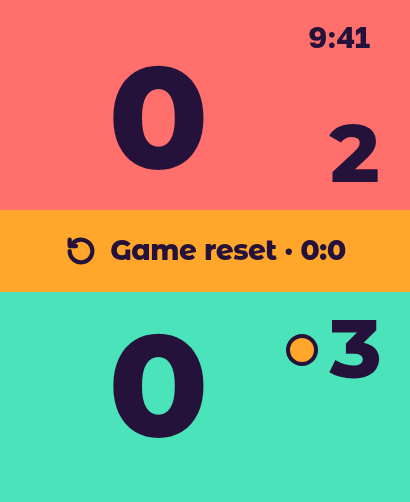
1. Turn the Digital Crown back: the game resets to 0:0 and the scoreboard shows “Game reset · 0:0”. If it is already 0:0, the previous game comes back.
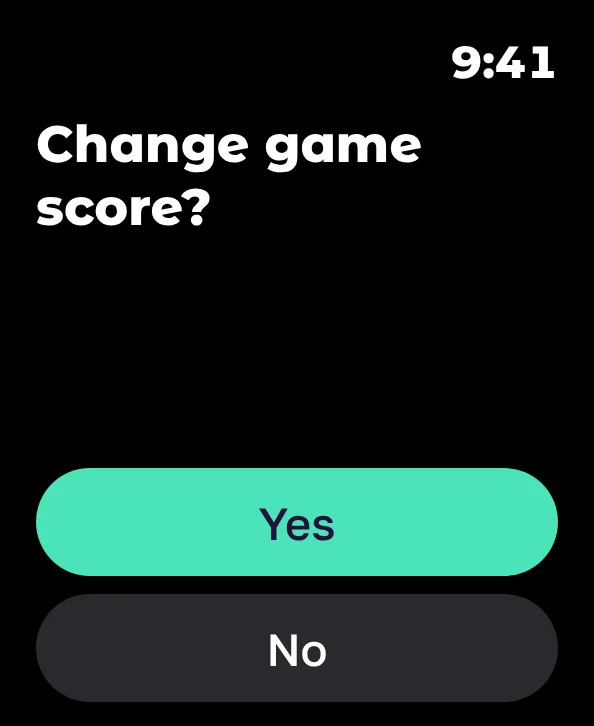
2. Keep turning without letting go and the watch asks “Change game score?”. Tap “Yes”.
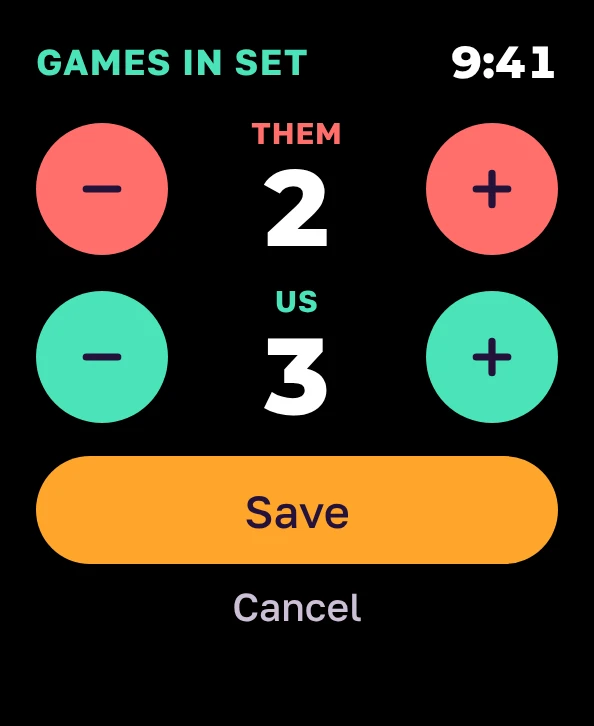
3. Set the games with the “−” and “+” buttons: your opponents on top, you below. Tap “Save”.
One turn does one thing: an accidental brush of the crown with your hand won’t change the game score. You can’t set a score that would already have ended the set; such a set is finished with a point.
The “Match” menu: undo point, serve, change ends, end set
1. “Undo point” removes the last point you marked, if you tapped the wrong half.
2. “Serve” shows who is serving now. At the start of a set, tap it to choose who serves.
3. “Change ends” is the reminder to change ends: tap it to turn it on or off; when it’s off, it says “no”.
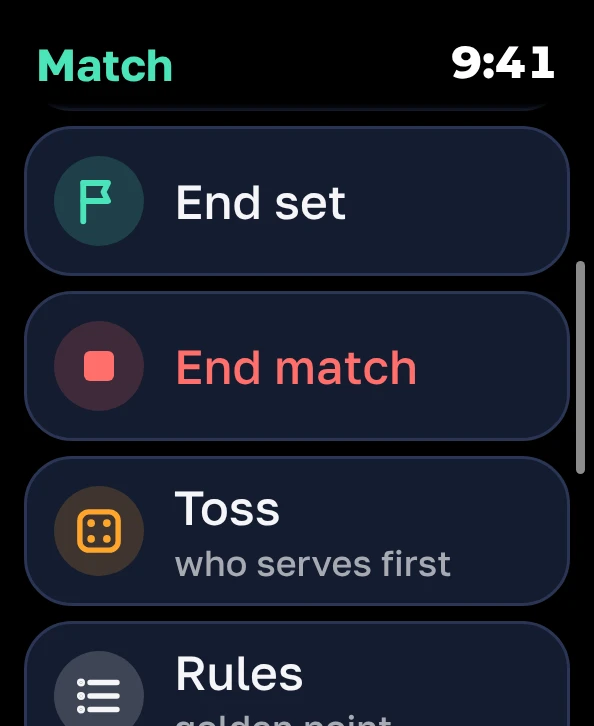
4. “End set” closes the set early at the current games score, for example when your court time is up. The next set starts at 0:0.
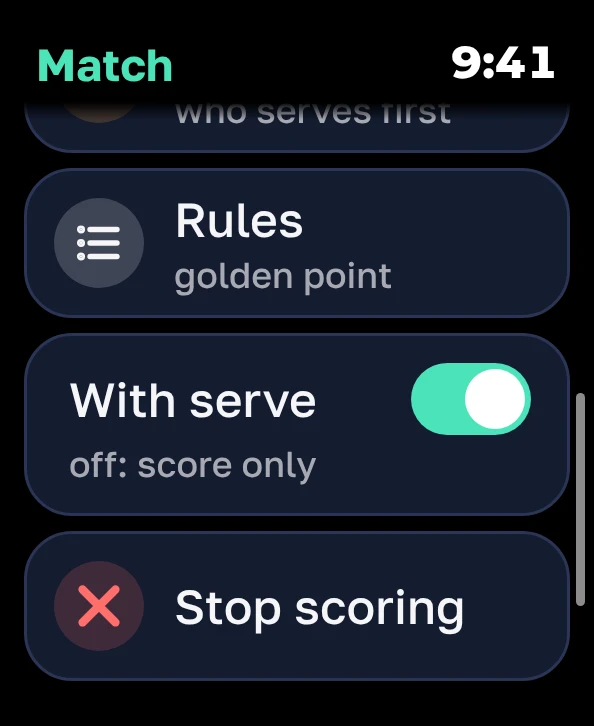
5. “Rules” switches between golden point and advantage. A tap changes the rule at any point in the game, from that point on.
6. The “With serve” switch: turn it off and the watch keeps the score only, without serve or point stats.
In “My tournament”, “End match” is replaced by “End round” and “End tournament”. “I keep score”, “Take over score” and “Stop scoring” are here too. The toss and how to finish are below.
How to do the toss
1. Before you start, tap “Toss” on the “New match” screen. At the start of a set, the toss is also in the “Match” menu.
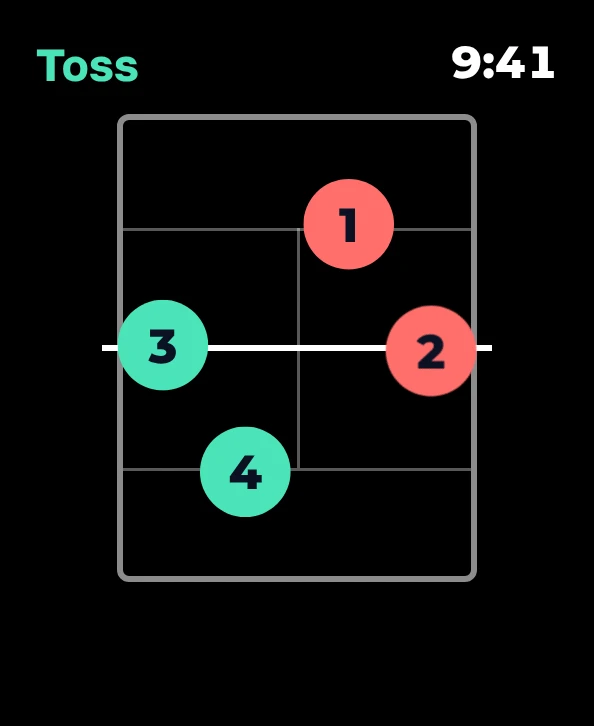
2. Four circles with the players’ numbers appear on the court: 1 and 2 are your opponents, 3 and 4 your pair. They spin for a second and a half.
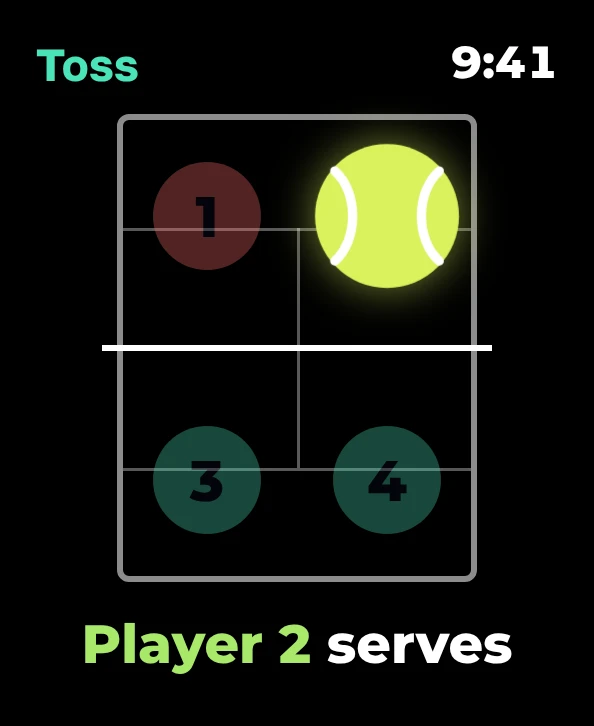
3. One circle flashes and turns into a ball: the watch shows “Player 2 serves”. That player serves first.
The numbers are the same as in “Are you 3 or 4?”: 3 is on the left, 4 on the right.
How to answer “Are you 3 or 4?”
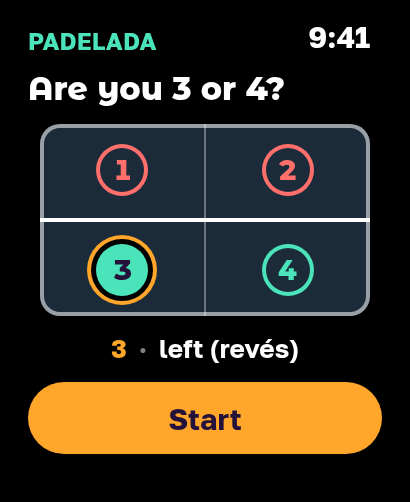
1. The watch asks where you stand on court: 3 is left (revés), 4 is right (drive). 1 and 2 are the opponents across the net. Tap your number.
2. Tap “Start”.
In “My game” the watch always asks. In a QR match it doesn’t ask if your side is already set in your profile. The numbers are needed so that, after a set, pairs can change and games count for each player.
How to answer “Same pairs?”
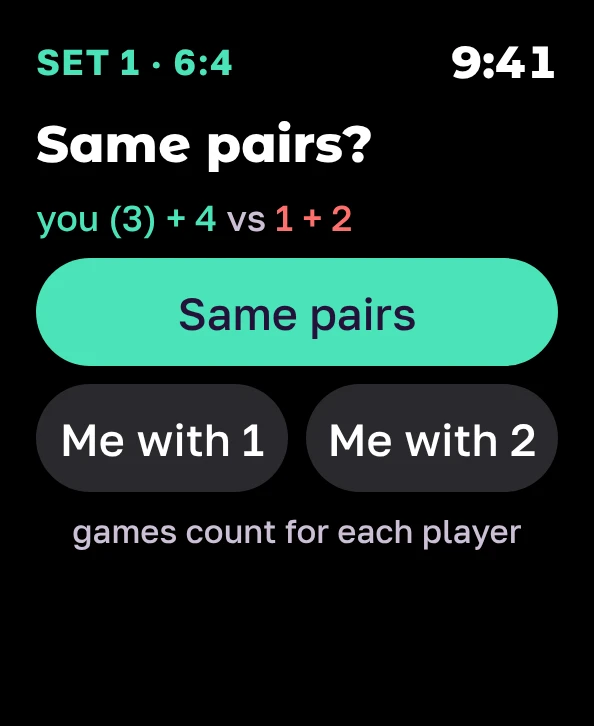
1. After every set, the watch asks “Same pairs?”. If you’re playing on as you were, tap “Same pairs”.
2. If you changed partners, tap “Me with 1” or “Me with 2”, by your new partner’s number. We’ll count the games for each player.
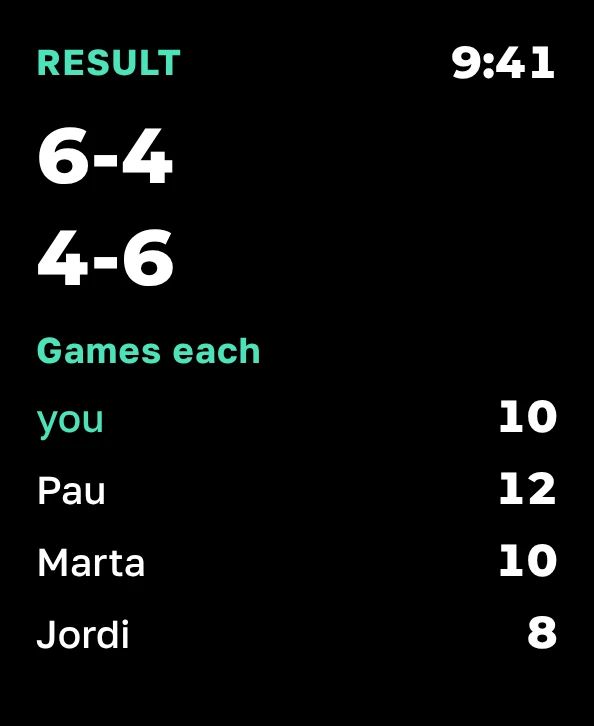
3. In the match result you’ll see “Games each”: how many games each of the four players won.
How to play “My tournament”
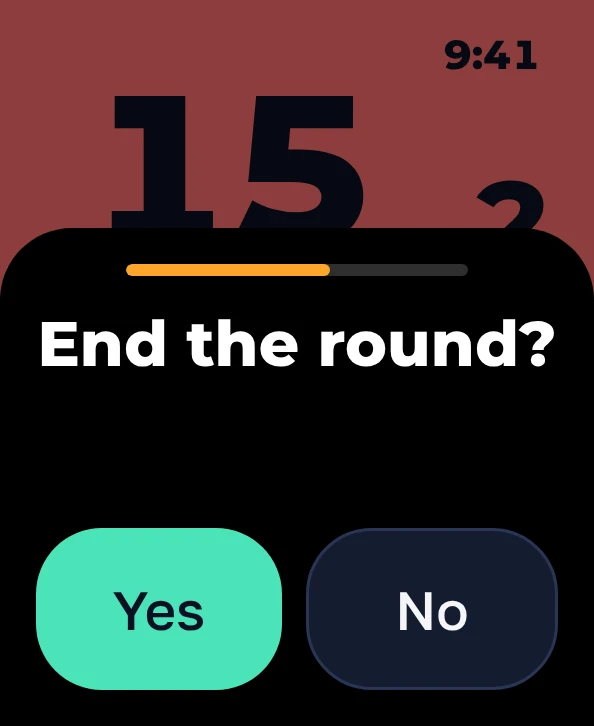
1. A round lasts as long as you need: there is no time limit. After 15 minutes, at the end of a game, the watch asks “End the round?”. Tap “Yes” to end it.
2. Tap “No” and play goes on. If you tap nothing, the question disappears after 5 seconds and play goes on too.
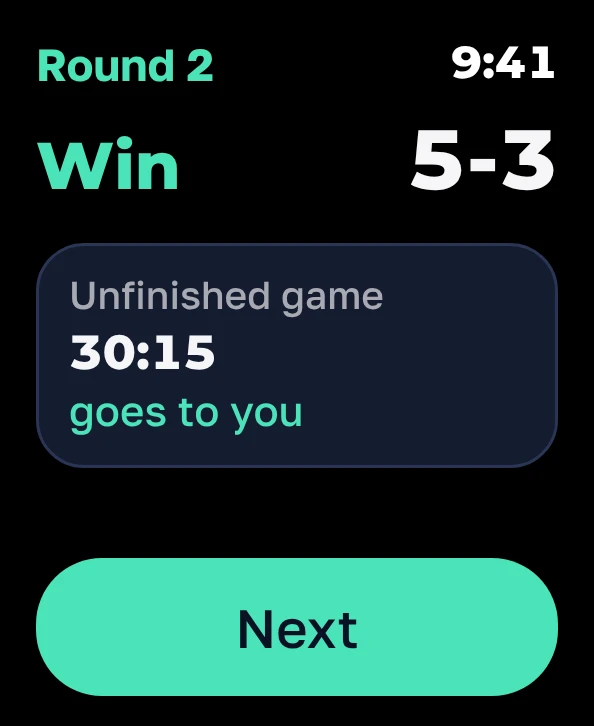
3. The round result: “Win”, “Loss” or “Draw” and the games. If the round ended in the middle of a game, the unfinished game goes to whoever leads on points: “Unfinished game 30:15, goes to you”. If the points are level, it doesn’t count.
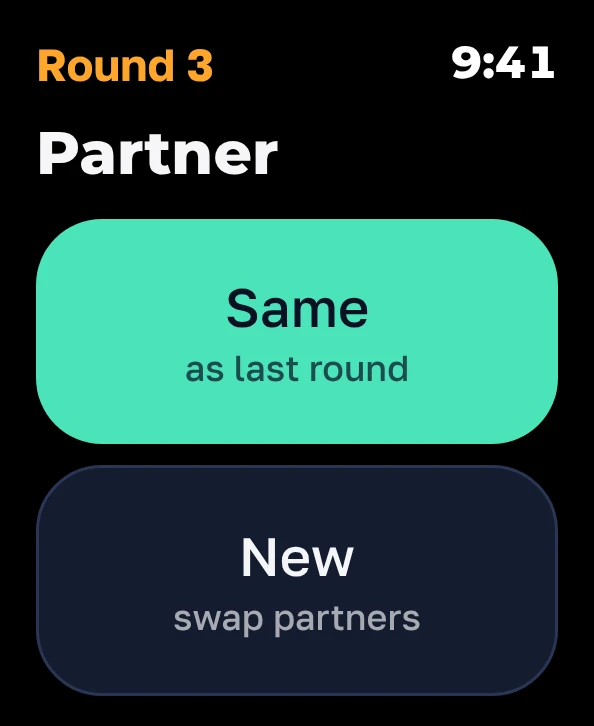
4. Next round, “Partner”: tap “Same” to keep playing with the same partner.
5. Tap “New” to swap partners.
The question only appears after 15 minutes of the round and at the end of a game, never in the middle of a rally. You can also end the round yourself at any time, even mid-game: “Match” → “End round”.
How to end a game or tournament
1. “My game”: in the “Match” menu, tap “End match”. The watch asks “End the game?”: tap “End match”.
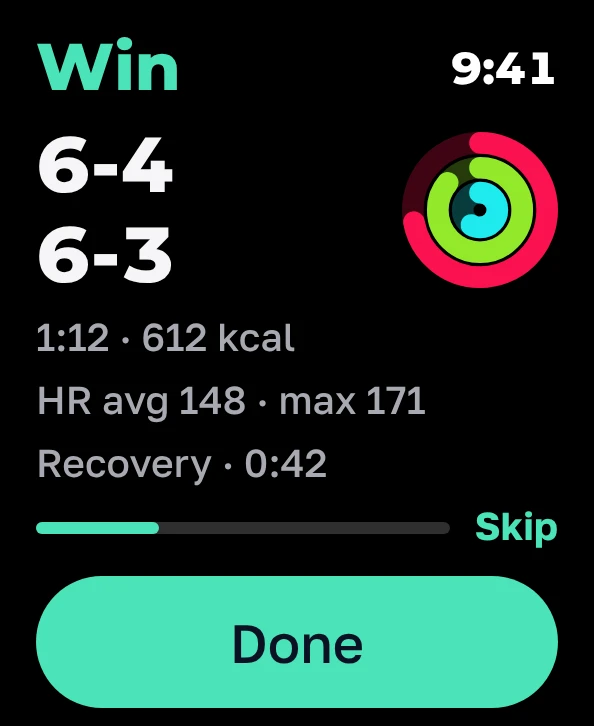
2. The watch shows the result: “Win”, “Loss” or “Draw”, the score by sets, time, calories, average and top heart rate and your Apple Activity rings. Tap “Done” and the score goes to the match on your iPhone.
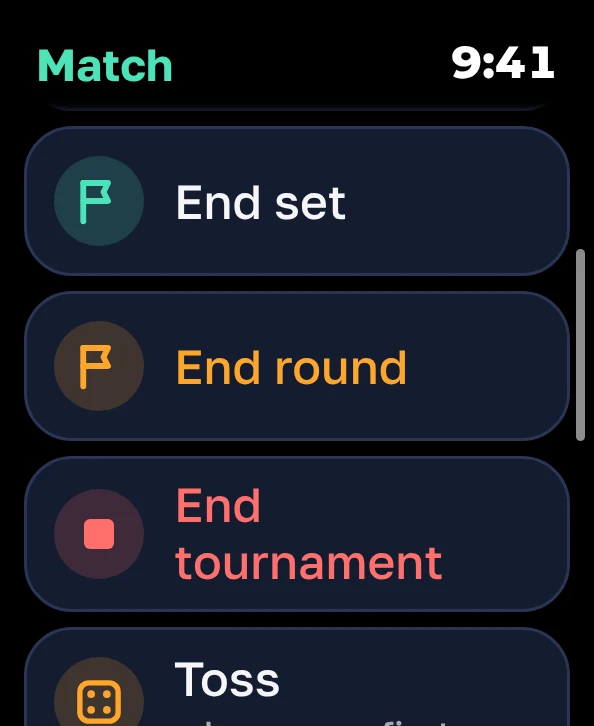
3. “My tournament”: in the same place you’ll find “End round”. It ends the current round at any time, even before 15 minutes and in the middle of a game.
4. To end the whole tournament, tap “End tournament” just below, or “End” on the “Workout” screen. The watch asks you to confirm.
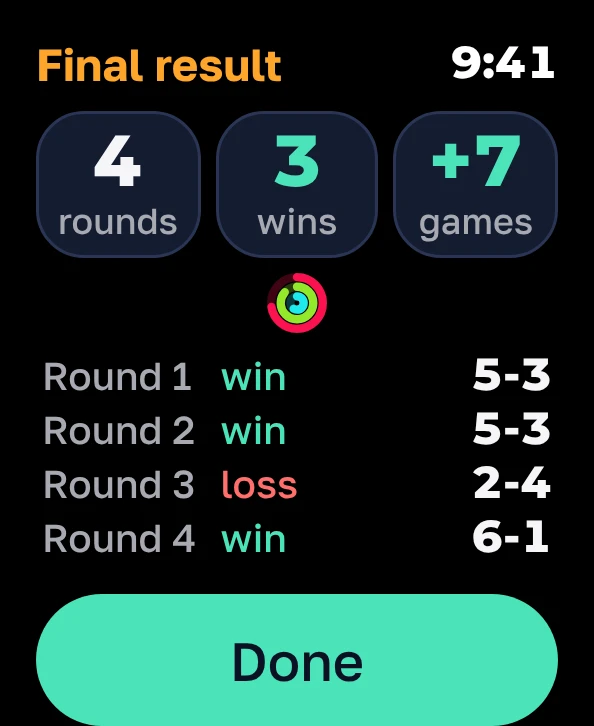
5. “Final result” shows rounds, wins and the games difference, your Activity rings under them and each round’s score below. Tap “Done”.
After the tournament result, the watch measures your heart rate recovery for 60 seconds, then the workout ends. If you stopped scoring during the game, you enter the score on the match sheet on your phone.
How to confirm a game by QR: all four players
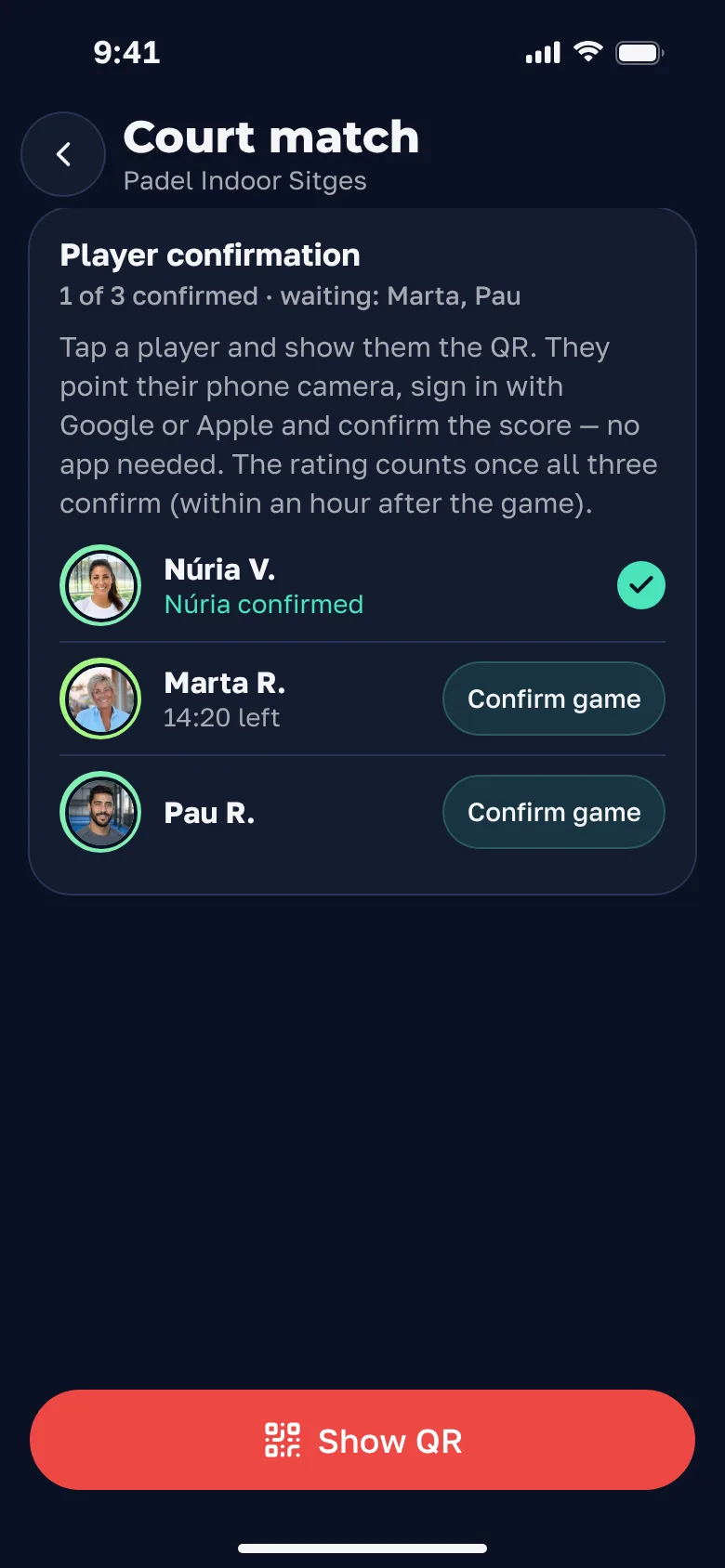
1. The score from the watch arrives in the match on your iPhone. The person who kept score sees “Player confirmation”: they tap “Confirm game” next to each player and show that player their personal QR.
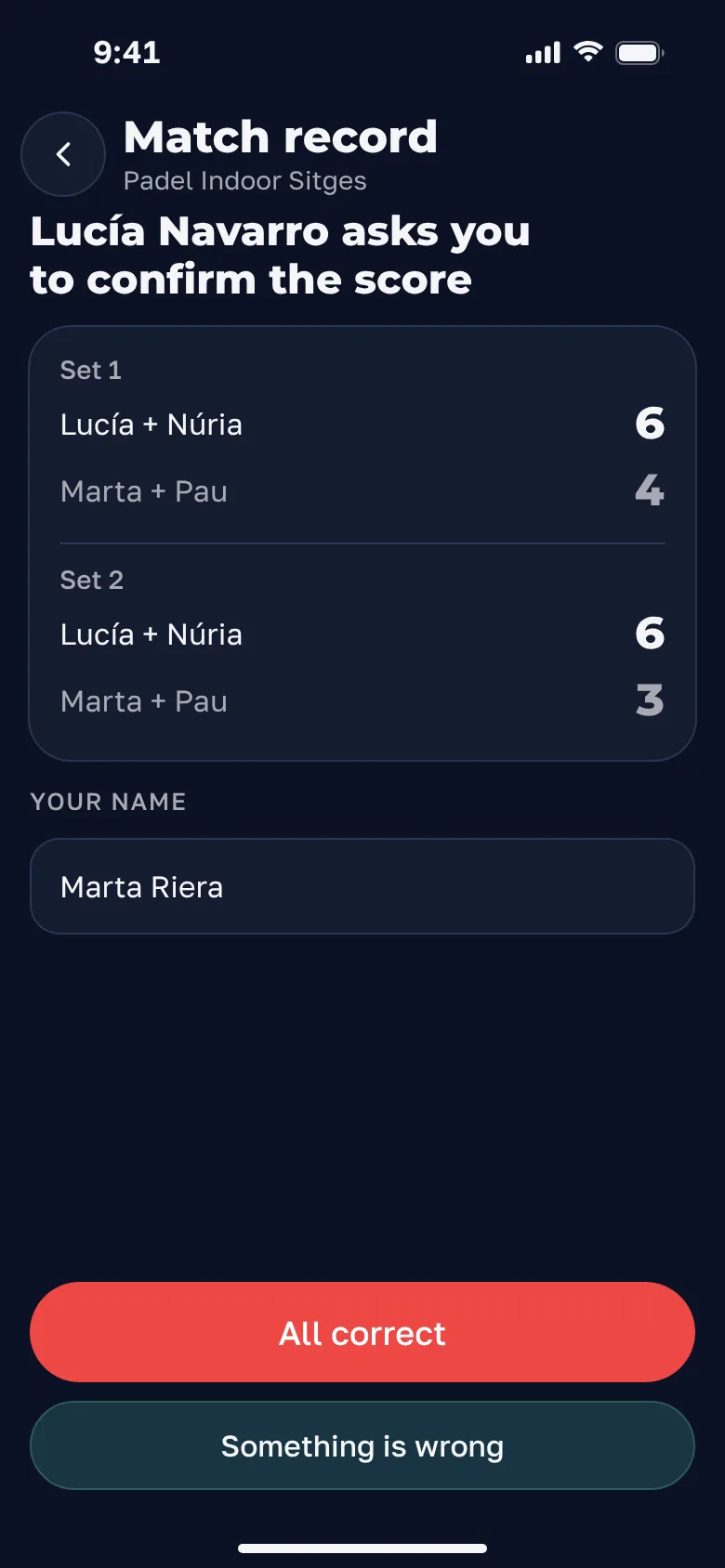
2. The player points their phone camera at it, checks the match record and taps “All correct”. If they spot a mistake, they tap “Something is wrong”.
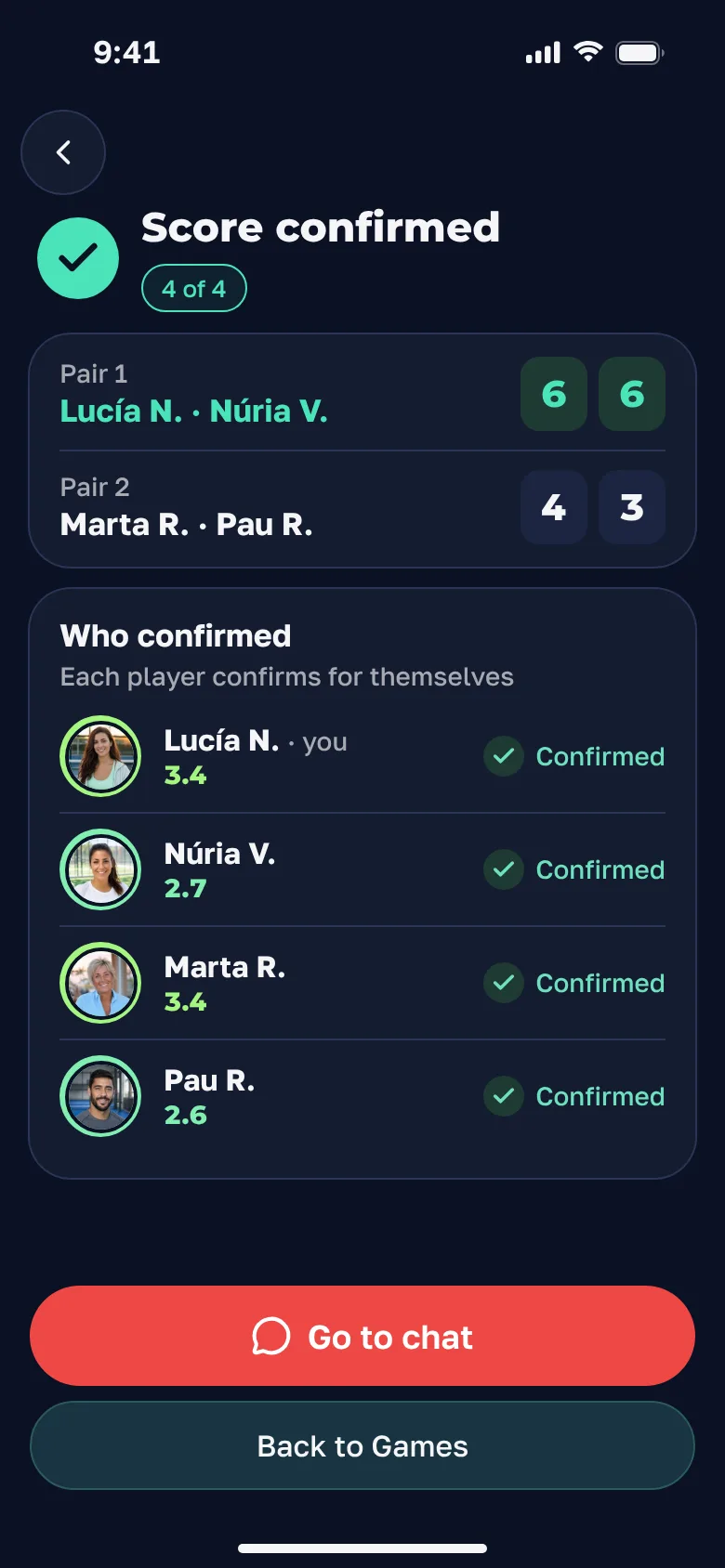
3. The person who kept score already agrees with it. Once the other three confirm, the screen shows “Score confirmed · 4 of 4” and the match counts towards your level.
There is one hour to confirm. If at least one player hasn’t confirmed, the game stays in “Games” but your level doesn’t change: silence doesn’t count as agreement. In an open tournament, the organiser confirms the score.
More on confirmation and a disputed score in the “Level and rating” guide
What the stats after a match show
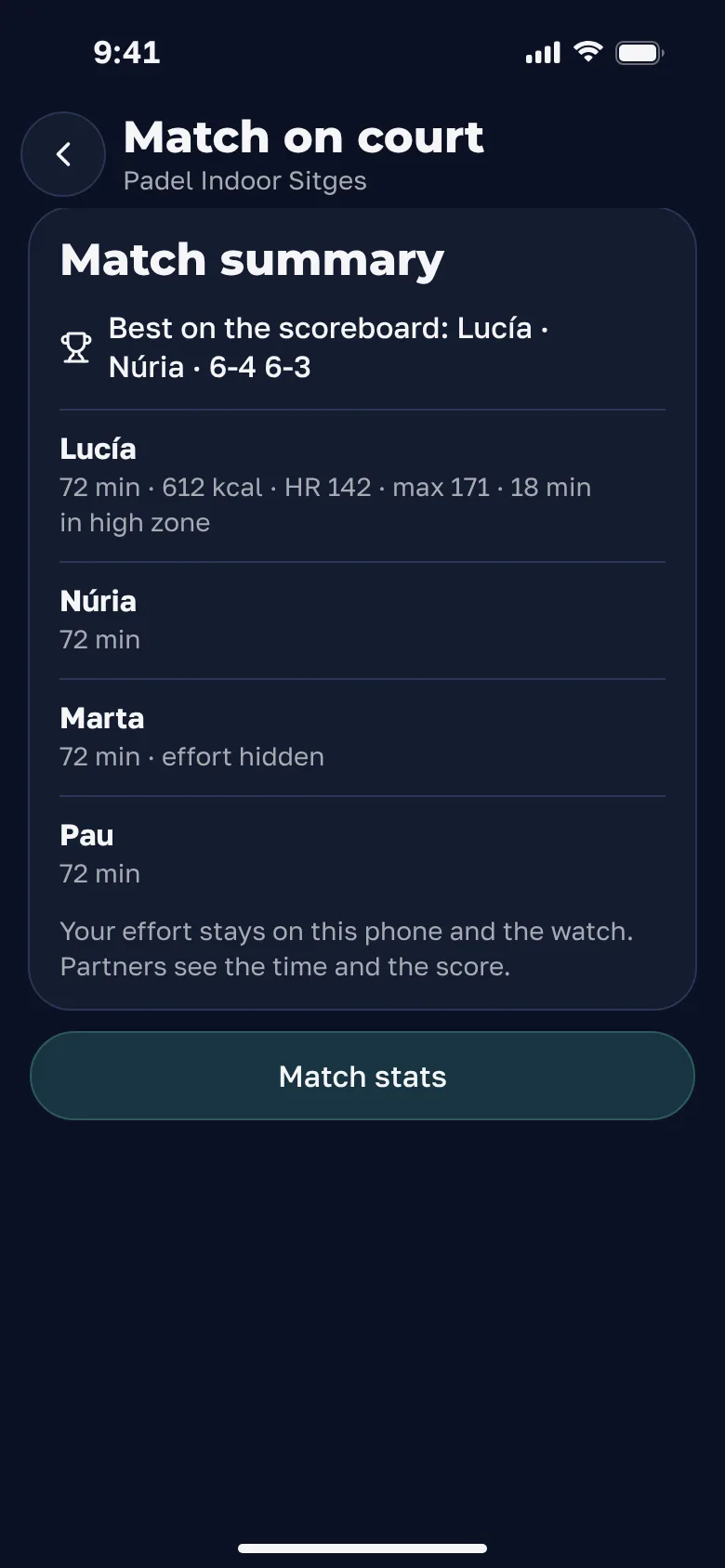
1. The match page has the “Match summary”: who is ahead on score and each player’s playing time. Your own row also shows calories, heart rate and minutes at high intensity. Below is the “Match stats” button.
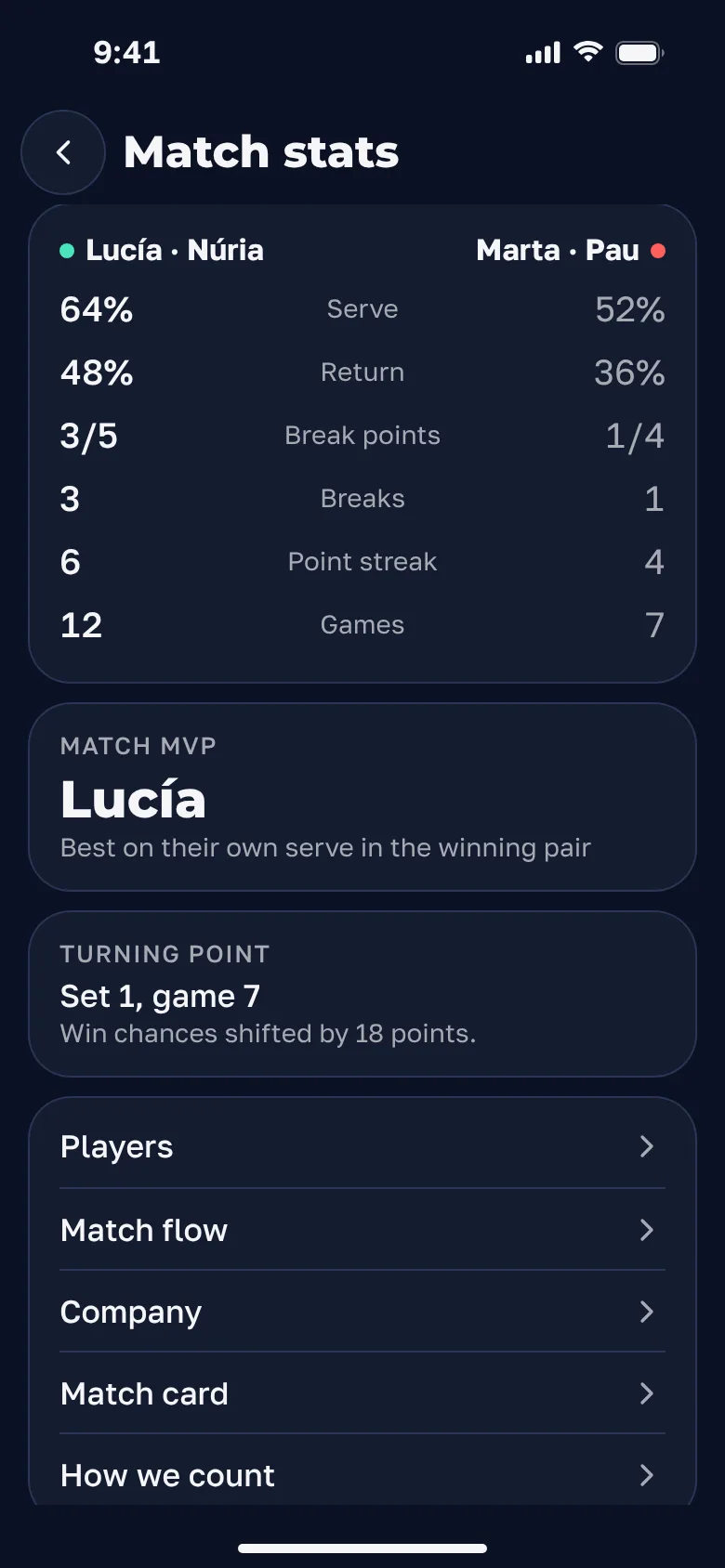
2. “Match stats” compares the pairs: serve, return, break points, breaks, point streak and games. The match MVP and the turning point are here too.
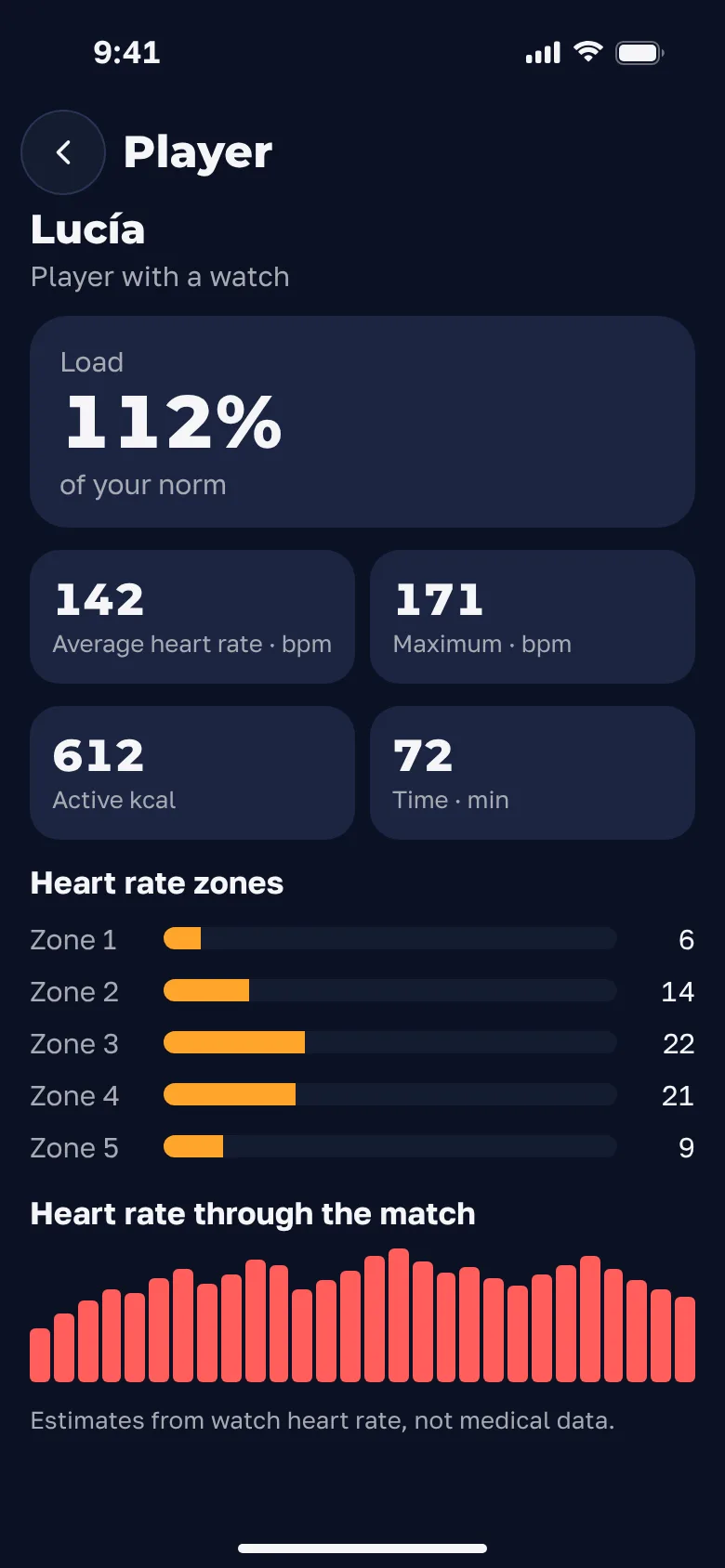
3. Open yourself in “Players”: load compared with your norm, average and top heart rate, active calories, time, heart rate bands and your heart rate through the match.
The watch records serve and rallies when you keep score with serve tracking; in “Score only” mode there is a dash instead. Your load norm appears after 3 matches with a watch. Only you see your heart rate and load. These are heart-rate estimates, not medical data.
What the match report shows
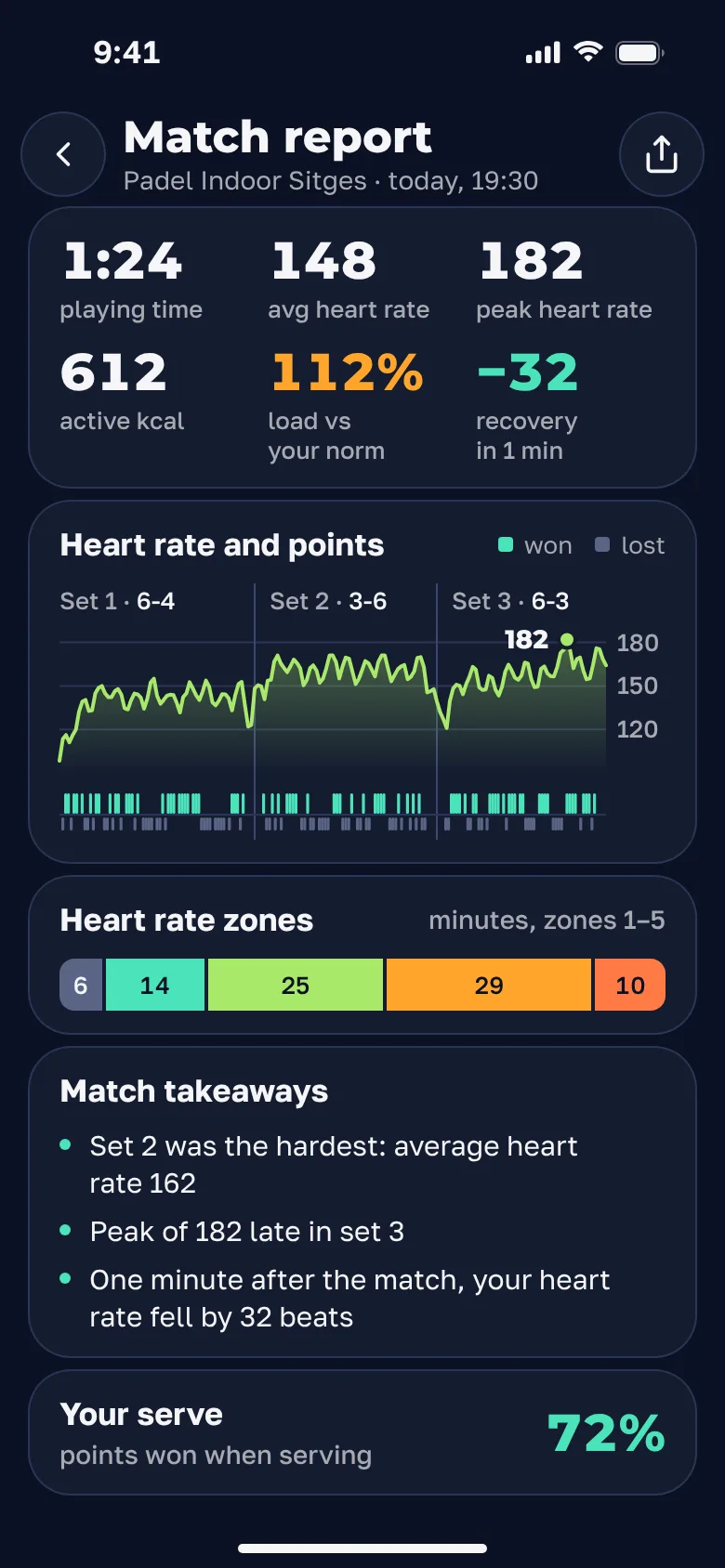
1. After a match with the watch, open “Match report”. At the top: time, average and peak heart rate, active calories, load against your norm and recovery, which is how far your heart rate dropped in the minute after the game.
2. The main chart is your heart rate through the match, with set dividers. Below it is a strip of points: points won go up, points lost go down.
3. Further down: minutes in the five heart rate bands and “Match takeaways”, 2–3 lines based only on this match’s numbers. If the score was kept with serve, you see the share of points you won on your own serve.
Your load norm appears after 3 matches with a watch. Only you can share the report, with the button at the top. The report and Form are part of Plus and Max, including gift plans, just like the watch app. Without them, your phone counts the time and calories.
What Form shows
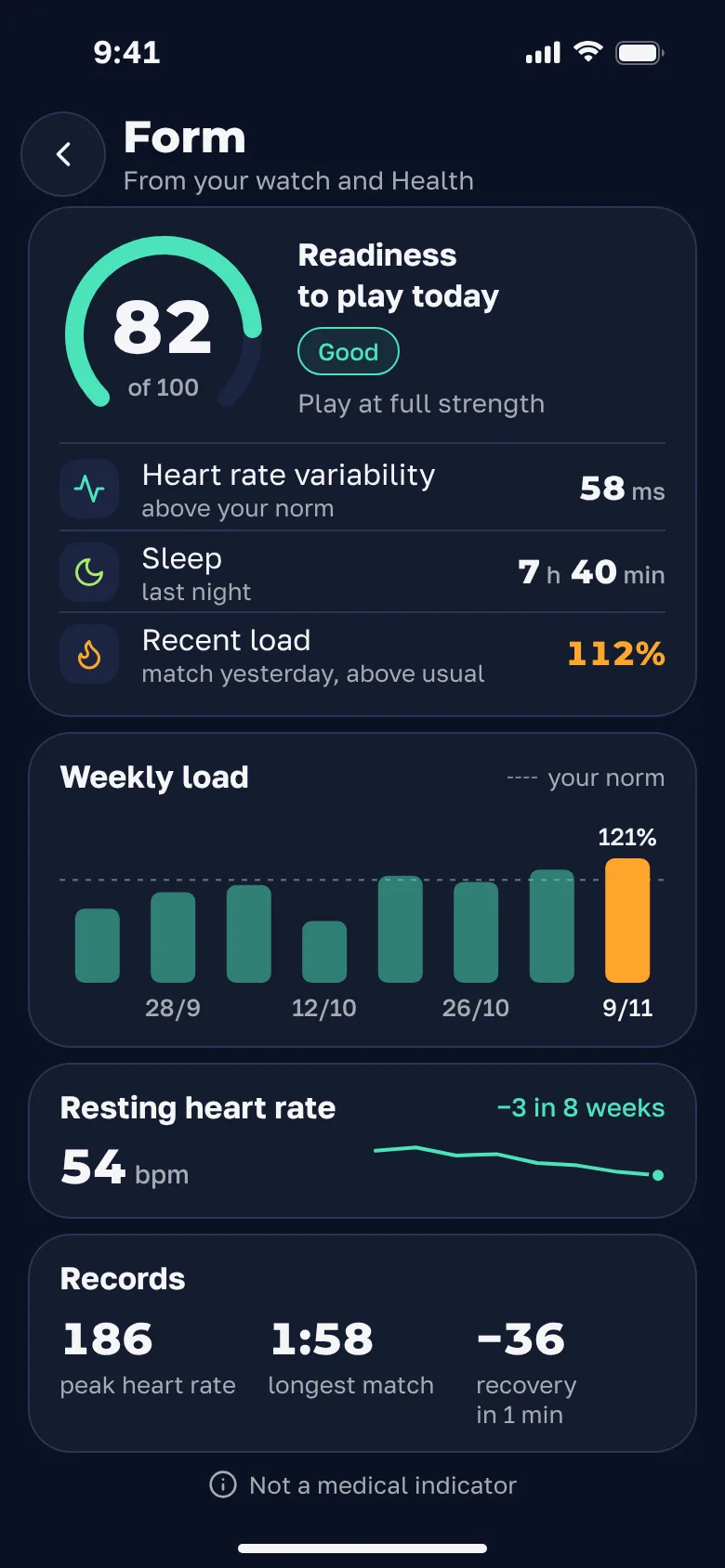
1. Your phone works out “Readiness to play today” on its own, from heart rate variability (compared with your 30-day norm from Health), sleep and your load over the last few days.
2. Below: weekly load next to your norm, resting heart rate and your records.
This is not a medical indicator. To read heart rate variability, sleep and resting heart rate from Health, Padelada asks for permission once. The report and Form stay on your devices and other players don’t see them.
What you see in Health
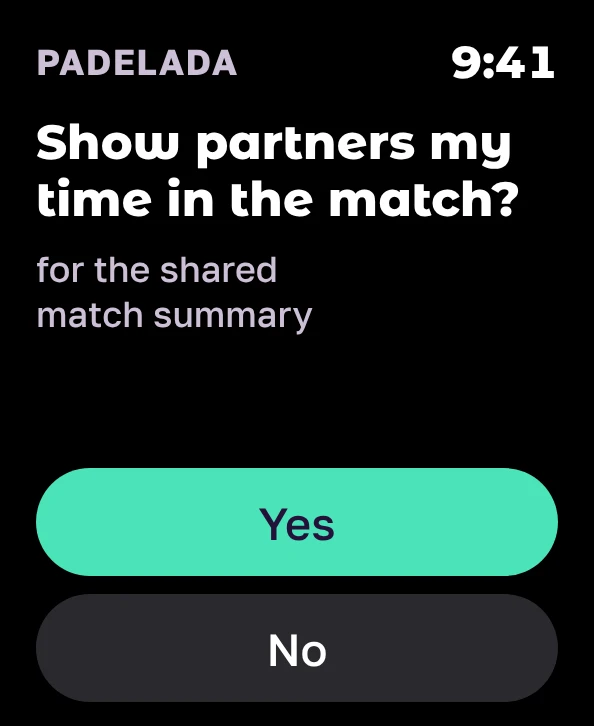
1. Once, the watch asks “Show partners my time in the match?”. This is for the shared match summary. If you answer “No”, partners won’t see it.
In the Health app, each game is one “Tennis” workout: there is no padel type there. It holds the duration, calories and heart rate. Your Health data stays on your device.
How the watch links to your iPhone
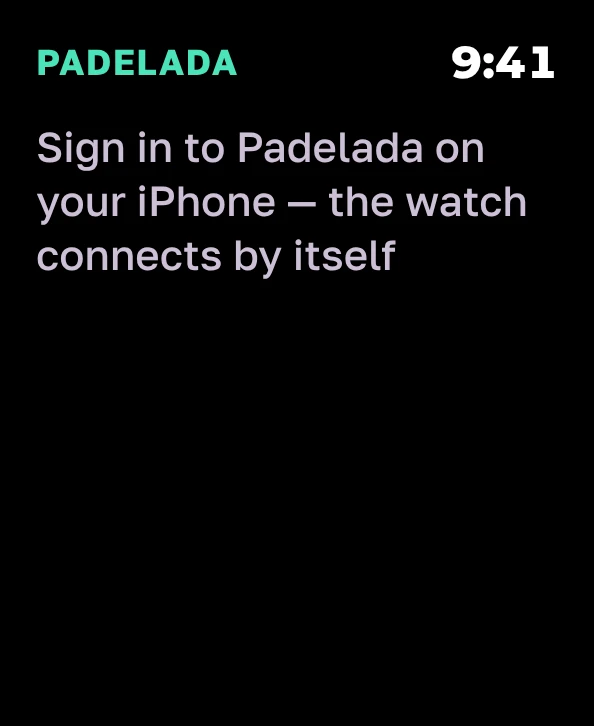
1. Install Padelada on your watch: on your iPhone, open the “Watch” app → Padelada → “Install”. Then sign in to Padelada on your iPhone and the watch connects by itself.
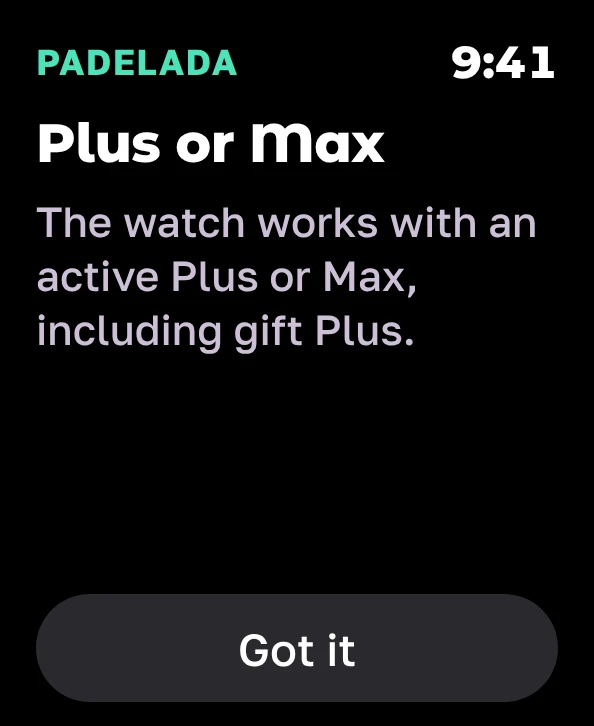
2. Without an active Plus or Max, the watch shows “Plus or Max”. Get Plus on your iPhone and the watch opens up without a restart.
The watch sends the score through your iPhone, or directly over Wi‑Fi and cellular. With no connection, the watch saves the score and sends it later.
How the round timer works for an organiser
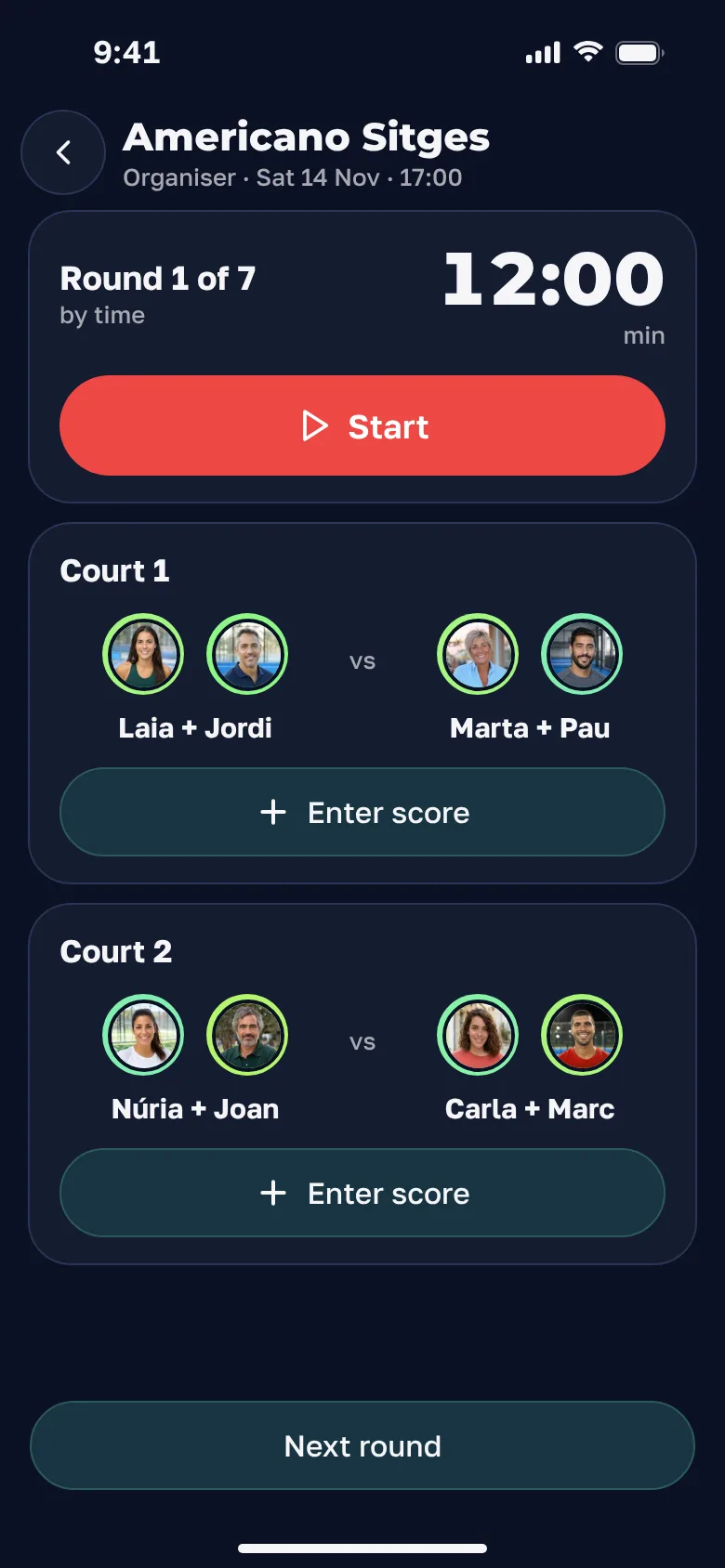
1. The tournament organiser starts a round on their iPhone with the “Start” button. The timer is shared by all courts.
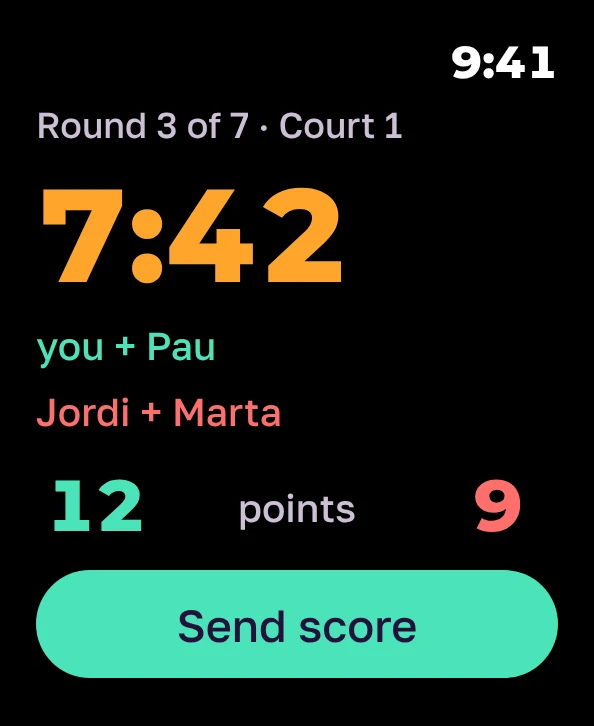
2. On a player’s watch you see the round and court, a countdown, your pair and the opponents. Tap a number to give the pair a point, and tap “Send score” to send the score to the tournament.
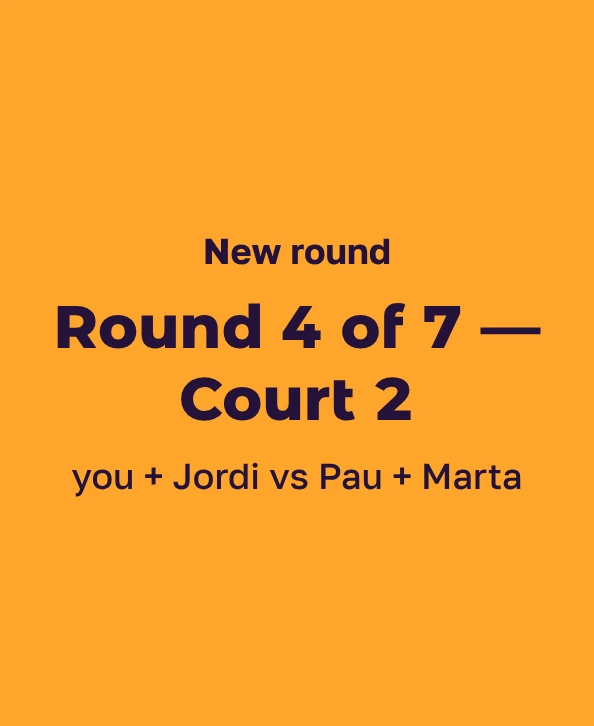
3. When the next round starts, the watch shows “New round”: the round number, the court and who you are playing.
In a tournament played to a set number of points, you see a target instead of a timer, for example “game to 21”. Turning the crown back undoes the last point.
Frequently asked questions
Do I need Plus to keep score?
Keeping score on your phone is free. The watch app is part of Plus and Max, including gift plans. Without them the watch won’t start a game, and your phone will count the time and calories.
Does the watch know who won a point on its own?
No. You always mark the point yourself, by tapping your own or the opponents’ half of the scoreboard.
Who keeps score if all four of us have a watch?
One person keeps score: in the “Match” menu (swipe left from the scoreboard) they tap “I keep score”, and the others see their score. If the scorer’s watch runs out of battery, tap “Take over score” in the same menu on yours.
Can I play with just the workout, without a score?
Yes. Swipe left from the scoreboard to the “Match” menu and tap “Stop scoring”. In a QR match you can also set “Keep score” to “Off” in the rules. Time, heart rate and calories carry on in the “Workout” screen.
What is “Score only”?
Before you start, pick it on the “New match” screen. During the game it’s the “With serve” switch in the “Match” menu: turn it off and the watch keeps only the points, with no serve or stats.
The watch didn’t get the game from my phone. What now?
Open Padelada on the watch. On your phone, in the score block, tap “Open on watch” and the game is sent to the watch once more.
Who sees my heart rate and calories?
Only you. Partners see the time and the score; heart rate, calories and load stay on your phone and watch. They go to the server only with your consent.
Which watches work?
Only Apple Watch paired with an iPhone.
What happens to an unfinished game?
In “My tournament” a round can end in the middle of a game. The unfinished game goes to whoever leads on points: at 30:15 in your favour, it’s yours. If the points are level, for example 15:15 or 30:30, it doesn’t count. The round result shows it in the “Unfinished game” line.
Can I turn off the “End the round?” question?
Answer “No” and play goes on. The question only appears after 15 minutes of the round and at the end of a game, and it disappears by itself after 5 seconds.
How long is a round in “My tournament”?
As long as you need: there is no time limit. After 15 minutes the watch only asks whether you want to end it.